Add and manage job documents
Last updated: October 27, 2026
In this article, you will learn
______________________________________________________________________________
About job documents
When you add a new job, you can add documents to the job for self-reference. Attach the documents such as the billing documents or any other supporting documents. After you save a job as draft, the option to add documents is available and you can see the audit status, any time.
You can also request documents from Denim. When the associated contractor uploads the requested documents in this job, you get an email notification.
See related articles for more context:
Add a new job (See Add a new job for details)
Edit job details (See Manage job details for details)
______________________________________________________________________________
Add document
Click on Jobs in the navigation. Click on Job Board and a list of jobs appears.
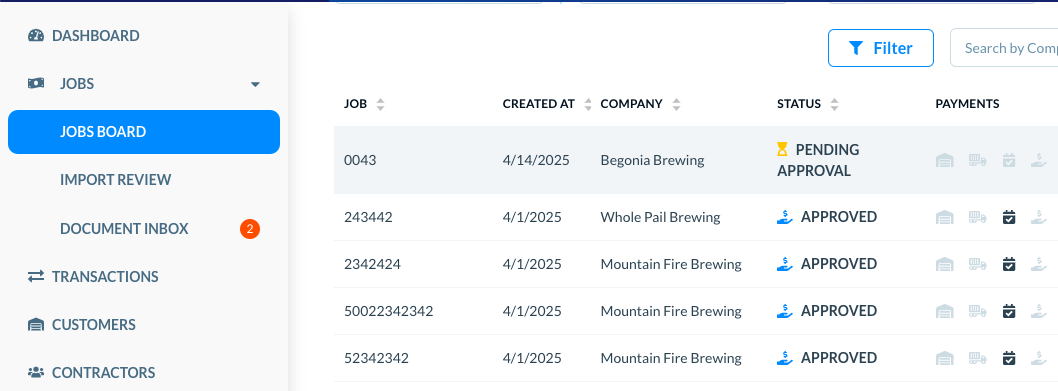
Locate the target job in the list. Use the Search field or the Filters to find a specific job. (Please see See and use list of jobs for more details on using filters and search.)
Click on the job, and the job details page opens.
See the Documents section.
There are two sections—Billing Documents, and Supporting Documents. Click on Browse Files in either section, and upload the document.
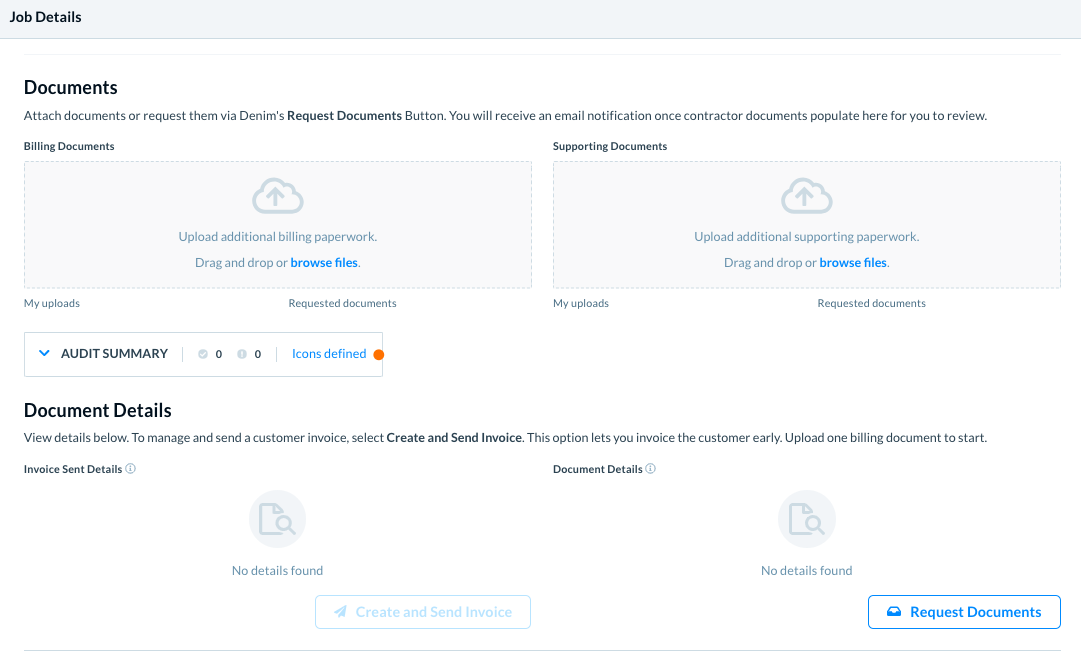
The uploaded documents show in the respective sections, for billing or support documents.
If an upload fails: Try compressing the document and upload it again. Compression resolved a BOL upload failure in one case, but it is not guaranteed to resolve every upload problem. No specific file-size limit, compression tool, cause, or alternate format is required by this guidance.
Resubmitting jobs with errors or missing documentation
If a job has an error or is missing documentation, you can resubmit the paperwork by following these steps:
Go to Jobs and locate the job that has an error or is missing documentation
Revert the job status to Draft
Upload the missing document(s) using the Browse Files button in the appropriate section (Billing Documents or Supporting Documents)
Resubmit the job for funding
If Revert to Draft is unavailable or the job status prevents submission: Do not try to bypass the status restriction or assume that you can replace the existing files yourself. Contact Support and provide the corrected documents and the job or load reference for case review.
If Support routes the materials through the Request Center, check the Request Center for the review status and updates. A submission for review does not confirm that the correction was accepted or indicate the job's payment status. Support may be able to revise paperwork or rebill the broker in an applicable case, but this is not guaranteed.
______________________________________________________________________________
Automatic audit summary of uploaded documents
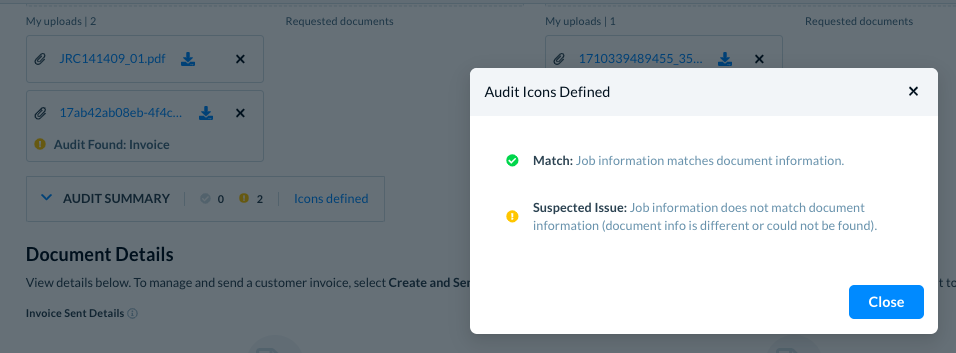
After you uploaded the documents, Denim scans and audits the documents, and it lists each document for the status. This information is available as Audit Summary, as below.
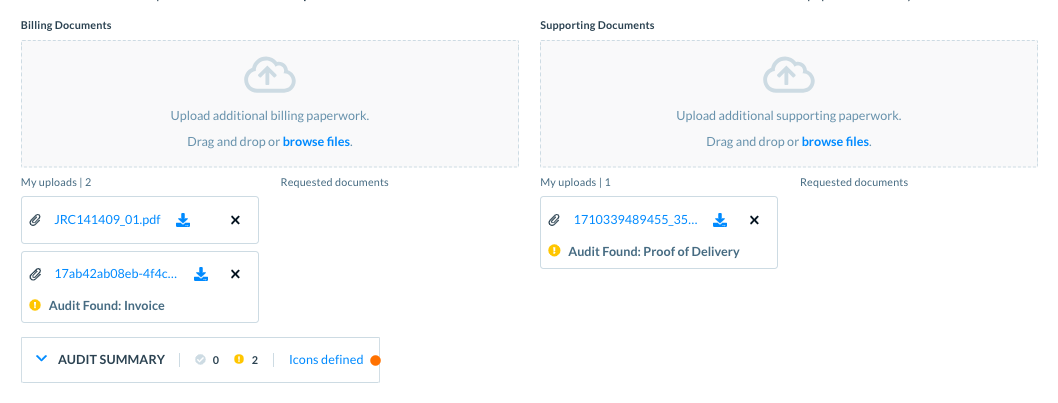
In each document, there are options to:
Download the document: Click on the Download icon to save the document on your local system.
Delete the document: Click on the X icon to remove the document from this job when the option is available. An approved job that has already been paid may not be removable or deletable, so the general X-icon instruction does not apply in that status-specific situation.
View the document: Click on the document name and it opens to show its content.
For an approved job after payment, if the existing billing documents cannot be removed, you can add the correct documents as an alternative. The newly added documents will appear when you download the invoice; identify which files are the correct ones to use. Adding documents does not remove or replace the earlier files. If adding the correct documents does not meet your needs, contact Support to assess the available options. Do not assume that chargeback or resubmission is available or can be completed self-service.
_________________
Audit Summary
Click on Audit Summary and the section expands to show you the audit status of each document.
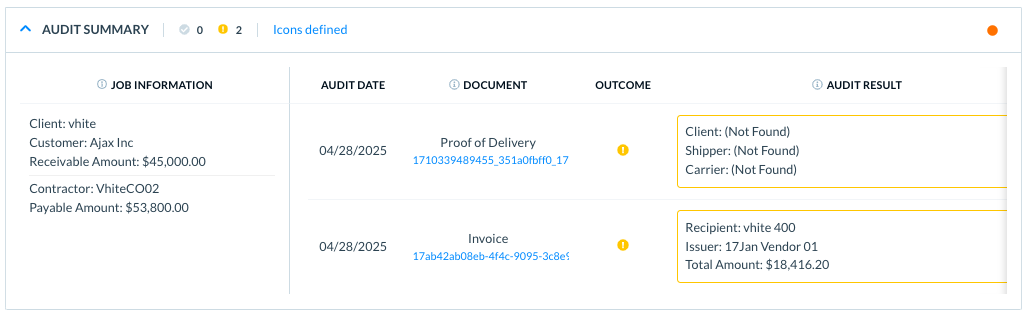
In Icons defined, you can see the legends for what each icon means.
______________________________________________________________________________
Create and send invoice
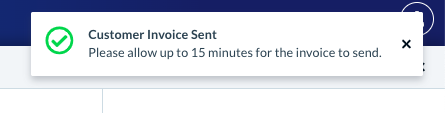
Click on the Create and Send Invoice button to create an invoice. Denim sends this invoice as an email attachment to this customers.
A notification confirms it, as below.
______________________________________________________________________________
Request documents
Click on the Request Documents button to request contractor documents. For example you can ask for the carrier invoice with an address, or some receipts of accessories, or any such documents. (Please see Request for contractors' documents for more details.)
The Request Contractor Documents modal opens.
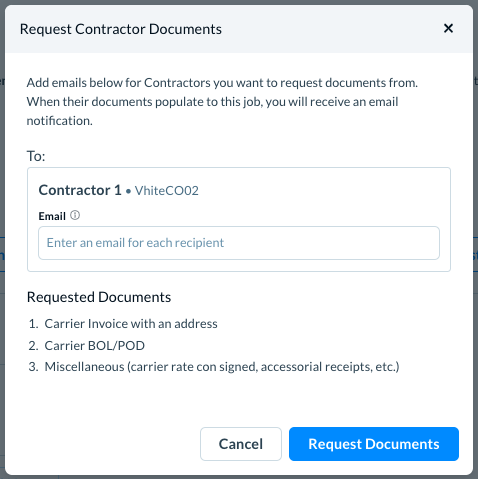
The contractor name is showing for your quick reference.
In Email, write one or more email addresses to request the documents.
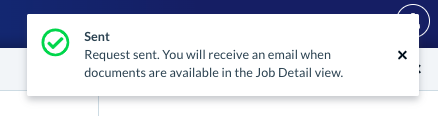
Click on Request Documents button. Denim confirms it by showing you a notification, as below.
______________________________________________________________________________
Answers to some common questions
Q: How can I correct a BOL or other paperwork after the job was submitted?
A: If the portal does not allow edits—for example, because the job is approved, paid, funded, or Revert to Draft is unavailable—contact Support with the corrected document and the job or load reference. Support can review the case and may be able to correct the paperwork or rebill the broker in an applicable case. Do not assume that every correction qualifies or that you can replace prior files yourself.
Q: What should I do if I have an additional or omitted supporting page after submission?
A: Contact Support with the job or load reference and identify the supplemental document for case review. Support may be able to add it to the invoice packet, but do not assume that every supplemental document qualifies or that it has been added or rebilled until Support confirms the action.
Q: What if documents sent with a submitted load belong to a different load?
A: Contact Support with the correct load reference and the intended documents. Tell Support which recipients, such as the customer or carrier, need corrected copies. Support can review whether the documents can be corrected and resent. Adding a new file does not remove or replace attachments that were already sent, and a correction or resend is not guaranteed.
Q: Can Support correct and resend my paperwork?
A: Send Support the updated paperwork and the job or load reference for review. Human-resolved cases confirm that Support has corrected and resent or reinvoiced paperwork in some situations, but this is a case-by-case review and does not confirm payer receipt, acceptance, funding, or payment.