Bulk import jobs—from CSV
Last updated: July 1, 2026
In this article, you will learn
- Options to import jobs
- Steps to do CSV bulk import
- How to use the CSV template and to set up receivable_IDs and payable_IDs before importing
- How to get the relationship_id or company_id for customers, contractors
- Actions after you create a new job
💡Note: You have an option to add a new job manually, without importing a file. See Add a new job for more details.
______________________________________________________________________________
Option to import jobs
There are two options to import jobs.
On Dashboard
Click on Dashboard in the navigation. Click on the Import Jobs button.
In the Jobs list
Click on Jobs in the navigation. In the expanded view, click on Job Board.
Click on the Import Jobs button to start importing bulk jobs.
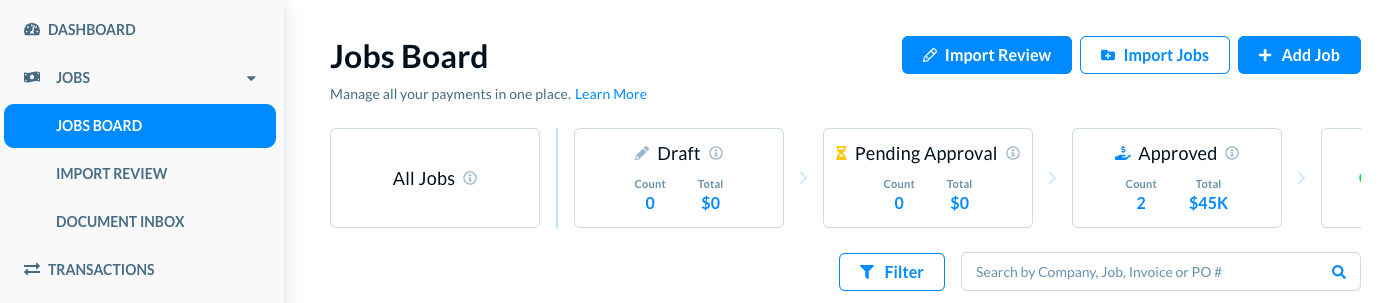
In either case, the Import Jobs model opens.
There are two options to import the jobs.
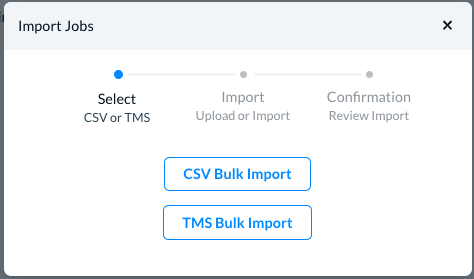
- CSV Bulk Import: Use this option to import the jobs from a CSV file.
- TMS Bulk Import: Use this option to use the TMS integration to bulk import the jobs. (See Bulk import jobs—from TMS for more details.)
______________________________________________________________________________
CSV Bulk Import
Click on the CSV Bulk Import button. The section expands to show you the import steps.
💡Note: When you want to import a CSV file, the jobs data need to be in a specific structure and format. If you follow the correct data practices such as for the date formats and the unique job numbers, the import completes faster.
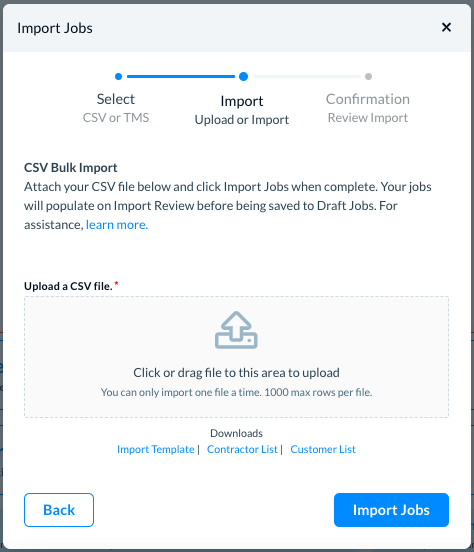
Click on the Import Template link to download the CSV file template. Add the jobs' data in this format. Once the file is ready, click on the Upload icon and upload the file.
When the file uploads, click on the Import Jobs button.
💡Note: If you are uploading a large file with 500-1000 jobs, this may take up to a minute to appear on the Import Review page. Please wait for 1-2 minutes before you think of uploading the file again.
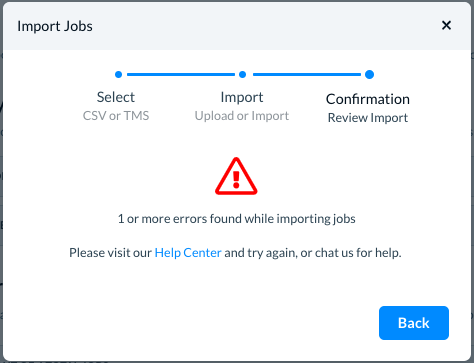
If the CSV file has some issue such as for the jobs' data format or structure, Denim shows you the message.
If you upload a correct file, the jobs details are imported successfully. These jobs are not showing in the jobs list because these need a final review.
Click the Go to Import Review button to see the Import Review page. The jobs are processed here to fix any gaps in their structure or information and once the jobs are ready, you can see these in the Job Board, with status as drafts.
__________________________________________________
Details of each column in spreadsheet template
In the spreadsheet, you can see following columns for the job information.
|
Title |
Description |
|
job_reference_number required ex: L-1232 |
This is the number that you use as your company's invoice number. |
|
is_factored required ex 1: TRUE ex 2: FALSE |
This will indicate to Denim whether you would like to factor the job or not. If you want to factor then put TRUE. If not, then put FALSE. |
|
notes optional |
Include any additional information you would like Denim to know about this job. |
|
receivable_reference_number optional ex: PO-12345 |
This is where you put a PO, or reference number used by your customer to reference the load. |
|
receivable_company_id see below for details |
This is where you put the Denim ID number associated with your customer. You can find this number by exporting your customer list and using the Company Id column (not Relationship ID). |
|
receivable_external_company_id
optional Use with TMS imports |
This is where you put the customer company ID number from the external system, such as a TMS. Leave this field blank if you have an existing Denim relationship with the customer and have entered a Denim ID. |
| receivable_external_company_name |
This is where you put your customer's company name. |
|
receivable_total_amount required ex: 100000 |
This is where you put the amount to be billed to your customer. This amount should be provided in cents as an integer (i.e. $850.00 = 85000). |
|
receivable_obligation_date required ex: 12/23/2020 |
This is where you put the date you are billing your customer. Format should be MM/DD/YYYY. |
|
receivable_due_date required ex: 1/23/2021 |
This is where you put the day your invoice is due to be paid by your customer. Format should be MM/DD/YYYY. |
|
receivable_relationship_id |
This is where you enter the unique relationship id matching you and the debtor. This can be found on the left column of the table in your Customers tab, or in the exported customer list file. |
|
payable_reference_number optional ex: JS-101 |
This is where you put your contractor's invoice number. |
|
payable_company_id see below for details |
This is where you put the Denim ID number associated with your contractor. You can find this number by exporting your contractor list and using the Company Id column (not Relationship ID). |
|
payable_external_company_idoptional |
This is where you put the payee company ID number from an external system, such as a TMS.Leave this field blank if you have an existing Denim relationship with the contractor and have entered a Denim ID. |
|
payable_external_company_name |
This is where you put your contractor's company name. |
|
payable_total_amount required if there are payables ex: 85000 |
This is where you put the amount you are paying your contractor. This amount should be provided in cents as an integer (i.e. $850.00 = 85000). |
|
payable_obligation_date required if there are payables ex: 12/23/2020 |
This is where you put the date your contractor is billing your company. Format should be MM/DD/YYYY. |
|
payable_due_date required if there are payables ex: 1/4/2021 |
This is where you put the date you would like to pay your contractor. Format should be MM/DD/YYYY. |
|
payable_relationship_id |
This is where you enter the unique relationship id matching you and the contractor. This can be found on the left column of the table in your Contractors tab, or in the exported contractor list file. |
________________________________
Which ID field you should use?
There are three types of ID fields on the template for each obligation type (receivable and payable), but you only need to use one ID type for each job.
receivable_external_company_id & payable_external_company_id
- Use these fields for jobs being imported from a TMS or other external program where companies have a unique ID number not found in Denim.
- Use these fields for jobs where you haven't already established a relationship with the debtor or contractor
receivable_relationship_id & payable_relationship_id
- These are the preferred fields for importing jobs from your own spreadsheets, when you have an established relationship with the companies on the job
receivable_company_id & payable_company_id
- These fields can also be used for importing jobs from your own spreadsheets, but are only recommended if you already know the company IDs for the job and have an established workflow using our CSV importer.
______________________________________________________________________________
Get the relationship_id or company_id for customers, contractors
____________________________
receivable_relationship_id
You can find it in the list of customers. In the main navigation, click on Customers.
In the customers' list, the Relationship_id's are listed in the ID# column.
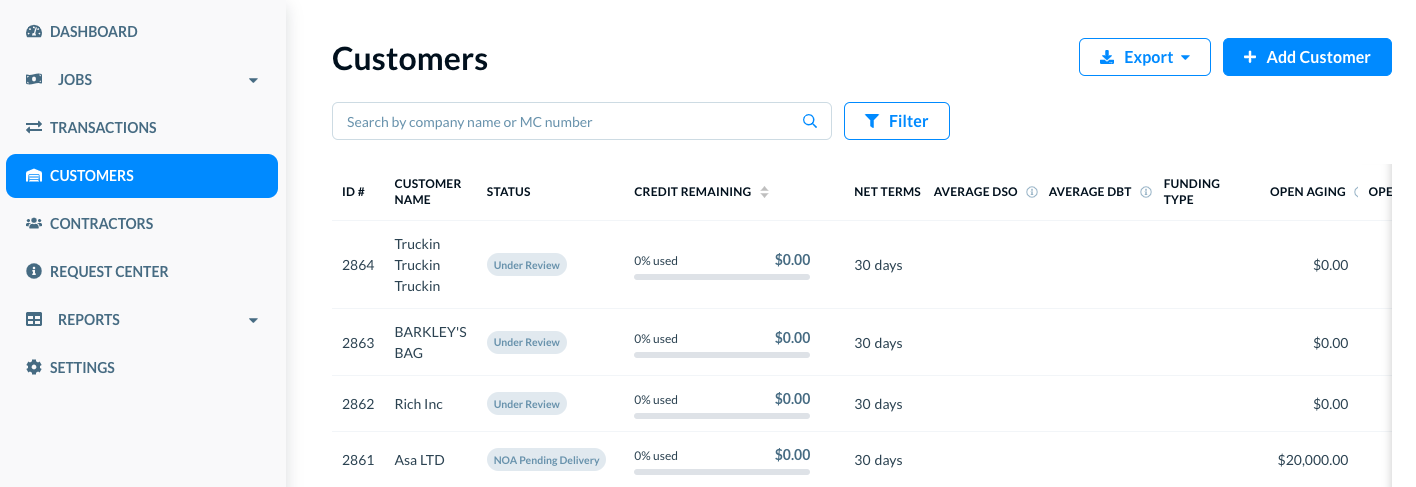
If you need them in bulk, use the Export button to download a list of all of your customers. In this downloaded file, find the "Relationship Id" column and use that number to enter in the corresponding field on your job upload file.
____________________________
payable_relationship_id
You can find it in the list of contractors. In the main navigation, click on Contractors.
In the contractors' list, the Relationship_id's are listed in the ID# column.
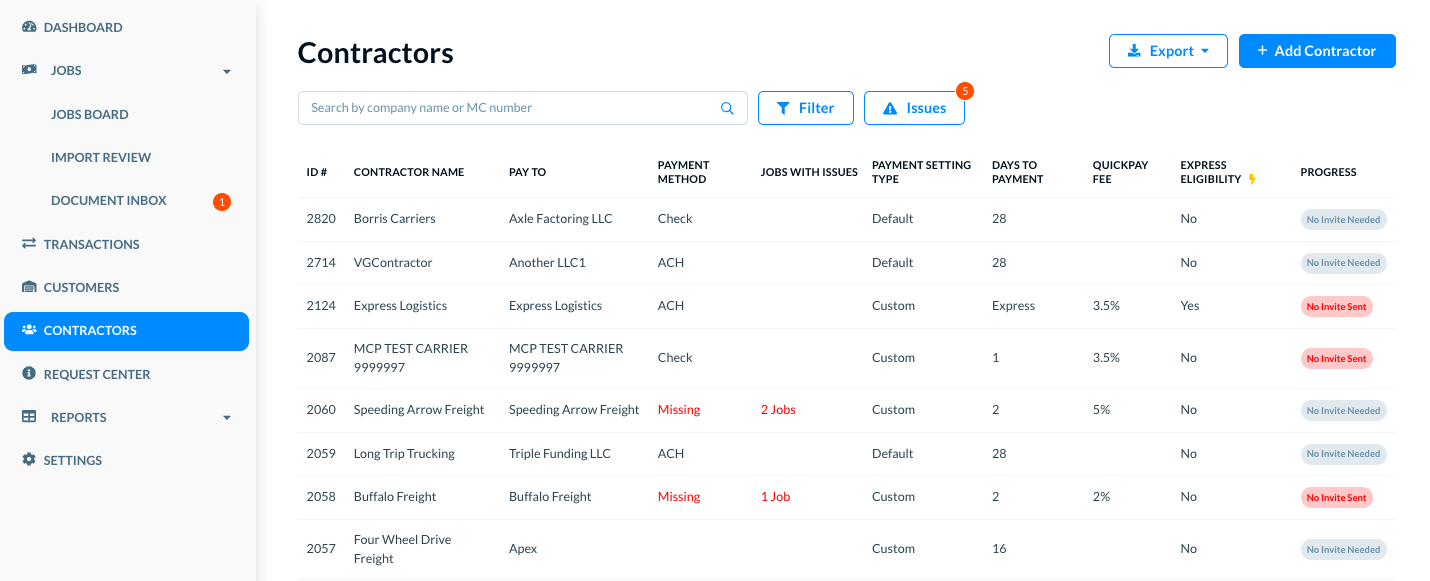
If you need them in bulk, use the Export button to download a list of all of your contractors. In this downloaded file, find the "Relationship Id" column and use that number to enter in the corresponding field on your job upload file.
______________________________________________________________________________
Next steps
See Import Review to resolve any gaps or mappings before the jobs are available in the jobs list.