Add and manage teams
Last updated: June 30, 2026
In this article, you will learn
- How to add new users and manage teams
- How to edit a users account details and role
- Change role of a user
- How to delete a user
- How to search a user in the list
______________________________________________________________________________
About Teams
Denim enables you to add users and assign them different roles in order to support your operational goals. You can add users and invite them to see and use certain features of the Denim portal based on the role they've been assigned. (Please see Add and manage roles for more details.)
For example, if you create roles such as supervisor, analyst, accountant or data entry specialist, you can add users and assign them to the pre-entered roles. This helps with team accountability and the assignments of role specific tasks. Here are some example roles for your quick reference.
- Data Entry Specialists: Team members assigned this role are responsible for keying in draft jobs and the associated contractors and customers, but do not have access to view the company's full customer or contractors lists, nor to view jobs once they are saved. They will receive all job-related emails.
- Trusted Agent: Users in this role create draft jobs, submit their own jobs to Denim for funding, see their own jobs throughout the lifecycle, and view the company's customer and contractor lists. They are restricted from seeing jobs created by the owner or by other agents.
- Accountant: Users assigned this role have access to view all reports, including the business dashboard, along with access to Quickbooks and Wallet funding. The user cannot create or work with jobs, contractors or customers. They will receive transaction related emails.
______________________________________________________________________________
Options to go to the users' settings
__________________________
Left side navigation
Click on Settings in the navigation.
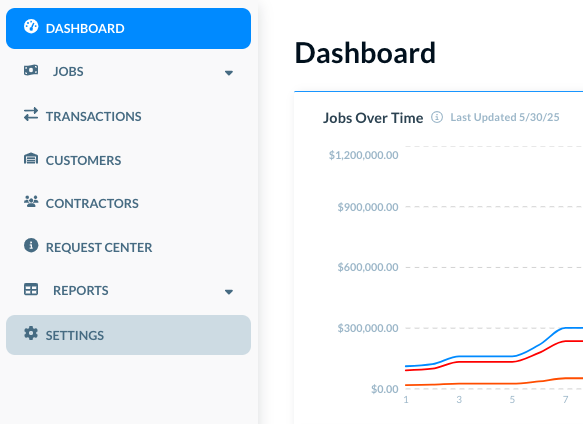
The Settings shows its own navigation in the left side.
________________________________________
In user profile menu at the top
Click on the user profile image at the top. A menu opens.
Click on Settings.
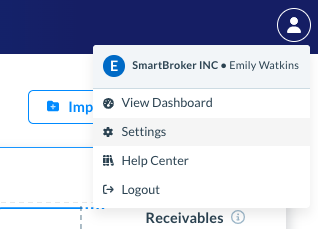
In either case, the Settings show its own internal navigation in the left side.
Click on Team Management.
______________________________________________________________________________
Add new user
The Team Management page shows you the list of users that already exist in this account.
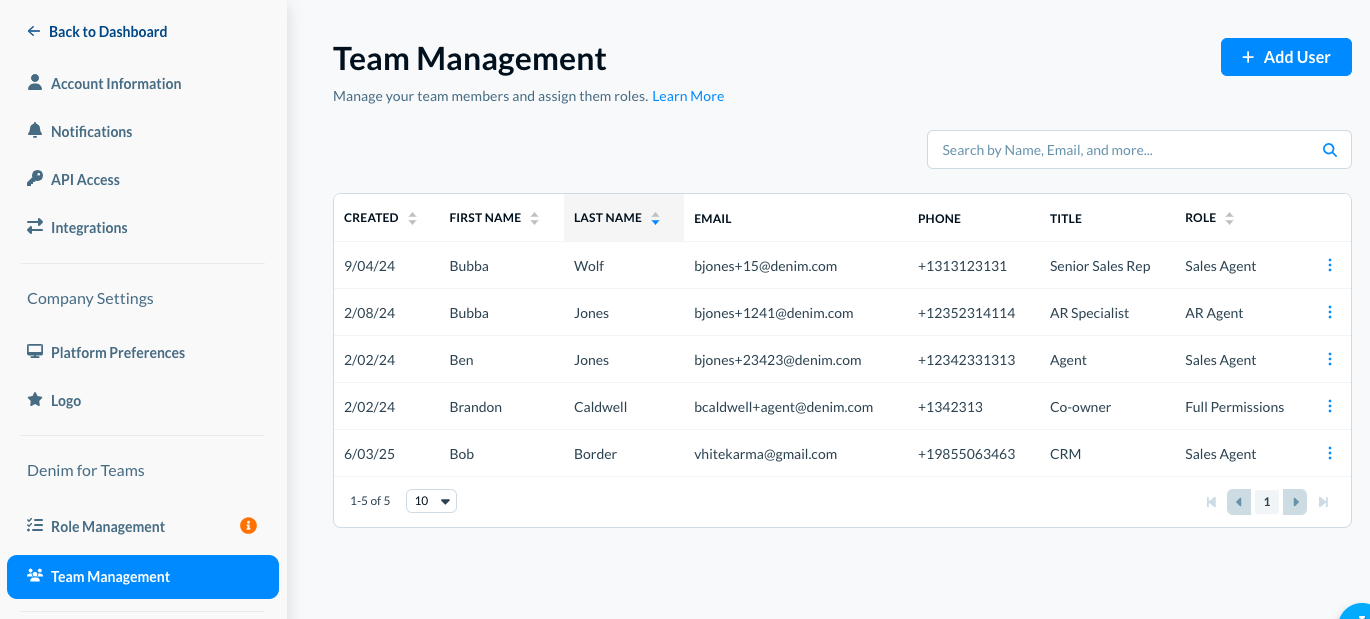
Click on the Add User button. The Add User modal opens.
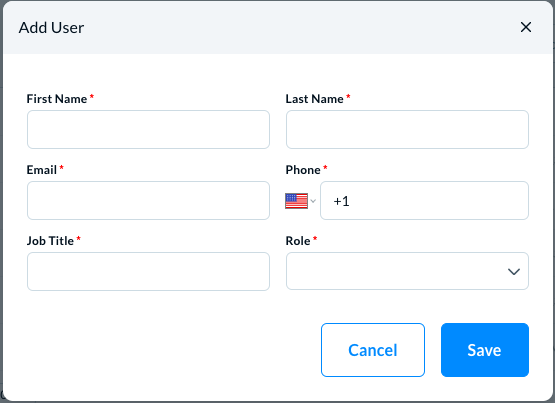
First Name, enter the first name of this new user.
Last Name, enter the last name of the user.
Email, enter the email of the new user. (The individual will receive an email invite request.)
Phone, enter the users phone number. Denim can use this phone number for two-level account security and verification.
Job Title, enter the job title or position of this user.
Role, select a role for this user. If you do not see any roles here, create new roles before you add new users.
Click on the Save button to save the new user details.
This user is now listed in the Team Management page.
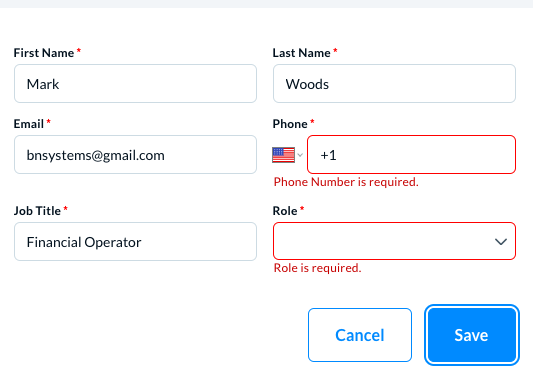
💡Note: Adding all the details for new user is mandatory. If any detail is missed, you will received the below message:
______________________________________________________________________________
Edit a user
You can edit a user to change their account information.
In the Team Management list, locate the user you want to edit. In the user's row, a context menu is available under the three dots, see below.
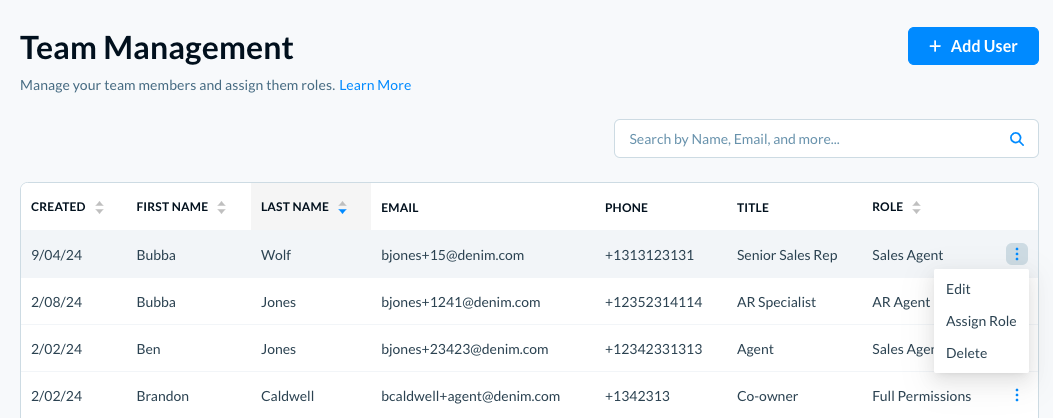
Click on Edit.
The Edit User modal opens.
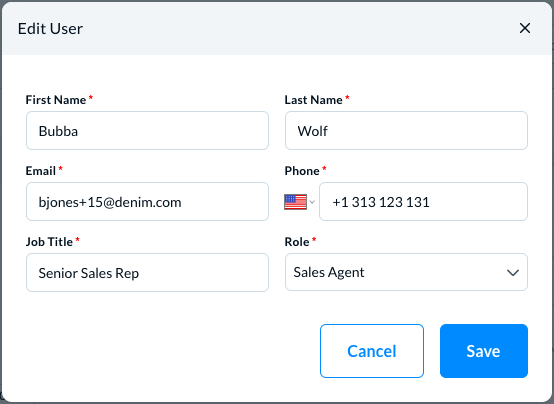
Make changes to the user's information.
💡 Note: If you change a users email address, they need to re-verify their Denim account before they can login to their account.
Click on the Save button to save the changes.
______________________________________________________________________________
Change role of a user
When you add a new user, you'll be assigning them a role.
You can assign a new role or change these roles anytime.
When you change a users role, their access capabilities are changed to reflect those assigned to the role they have been assigned. This could mean more or less access to different aspects of the Denim portal.
To change a role for a user, locate the target user in the Team Management list.
In the actions context menu, click on Assign Role.
The Assign Role to username modal opens.
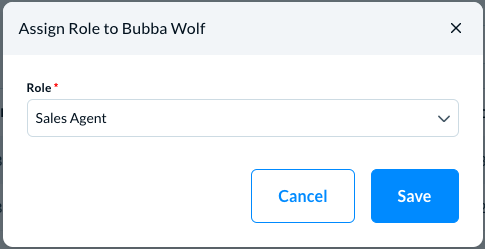
In Roles, select the new role for this user.
Click on the Save button to save the changes.
______________________________________________________________________________
Delete a user
You can delete a user, anytime. When you delete them from the Denim account, they lose access to the Denim Portal immediately.
To delete a user, locate the target user in the Team Management list.
In the actions context menu, click on Delete.
Denim asks you to confirm if you want to delete this user.
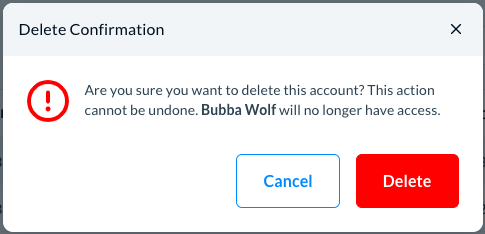
Click on Delete to confirm it.
______________________________________________________________________________
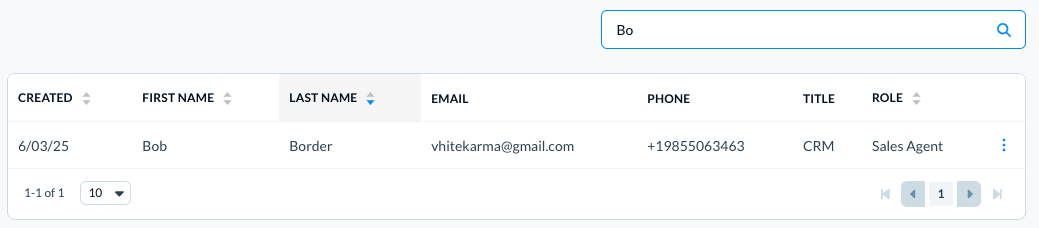
Search a user
When you have a long list of users, the Search field helps you quickly locate the user account you're looking for. Write the user's name or email or role in the Search field. The matching records show in the list, please see example below: