The Dashboard
Last updated: June 30, 2026
In this article, you will learn
- About the Denim dashboard
- Actions available—add and import jobs
- How the dashboard can be used to help reach your goals
___________________________________________________________________________
About the dashboard
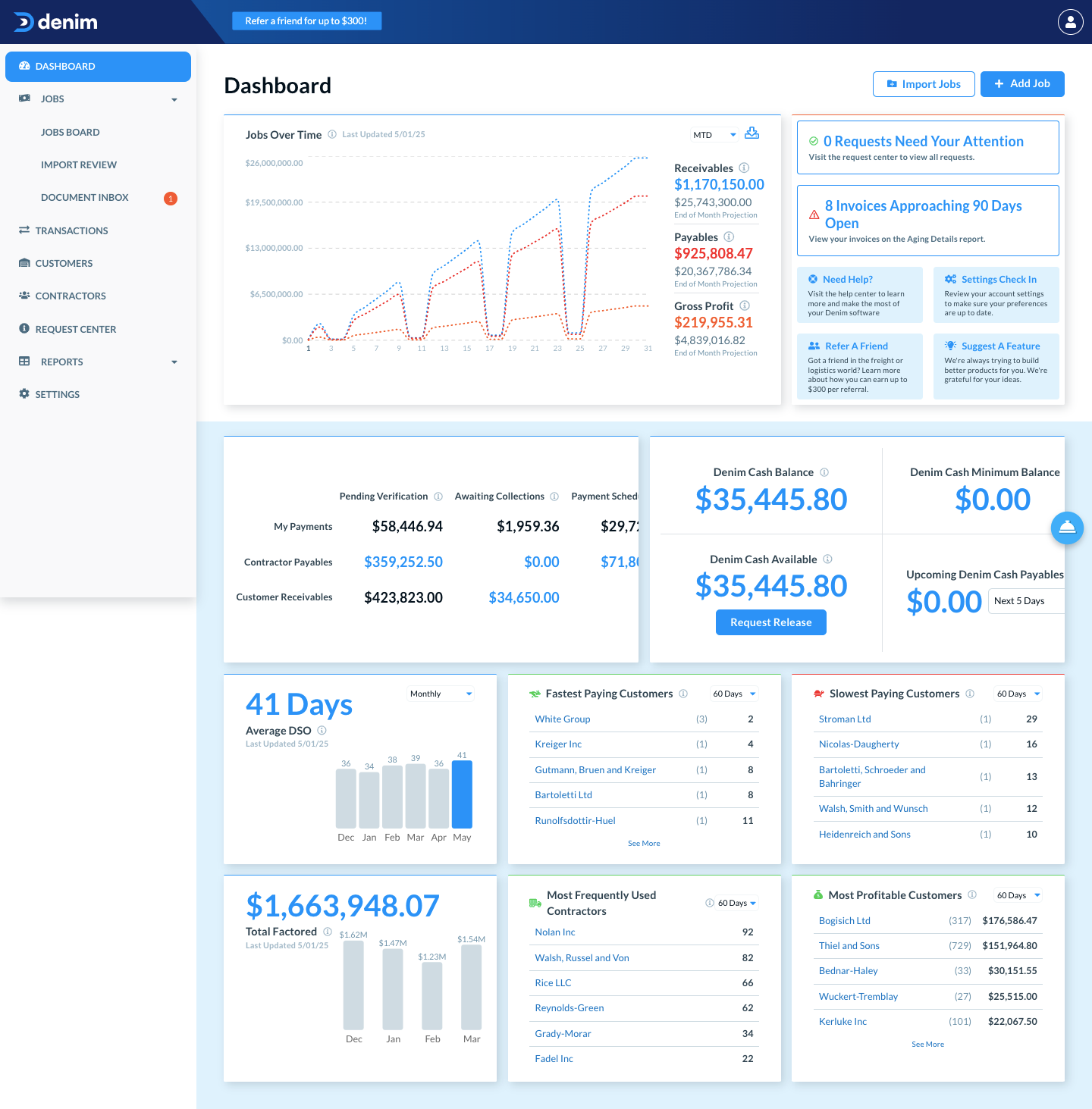
The dashboard shows you a graphical view of accounts receivables, accounts payables, and gross profit.
You now have visibility to your contractor payables in one place when looking at your Contractor Payables link.
In order to reach your Dashboard in the navigation, click the Dashboard option on the upper lefthand menu. The dashboard opens to the below view:
______________________________________________________________________________
Jobs over time
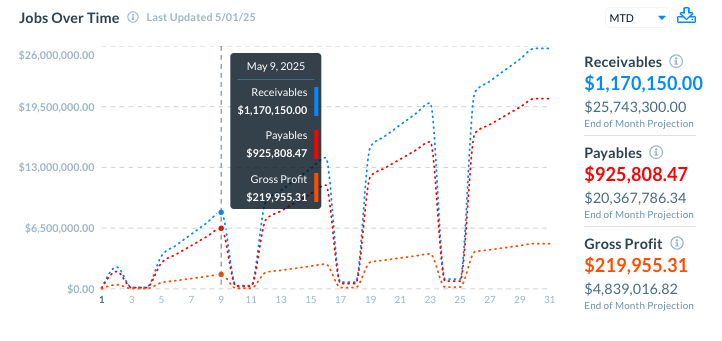
This section shows you a line graph of your accounts receivables, accounts payables, and gross profit within a specific period of time. Hover on each individual line to see the numbers for that specific position.
________________________
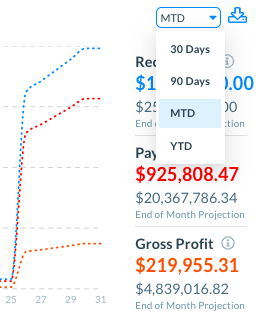
Select the time interval
In MTD dropdown, select the time period you would like to view. For example, MTD is Monthly and YTD is Yearly.
____________________________
Export the graph numbers
Click on the Export arrow icon to see the export options.
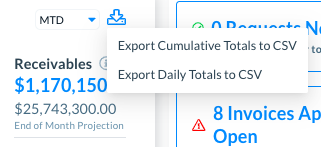
- Export Cumulative Totals to CSV: Select this option to export the cumulative totals to a CSV file.
- Export Daily Totals to CSV: Select this option to export the daily totals to a CSV file.
______________________________________________________________________________
Requests need your attention
This connects you with the Request Center.
In Requests that need your attention, you can see how many request pending as actionable items, as well as those pending your confirmation. Click on this link to go to your tRequest Center.
(Please see Request Center overview for more details.)
______________________________________________________________________________
Invoices approaching 90 days—Aging details
This section shows you the total number of invoices due within the next 90 days.
Click on this link to go to the Aging Details report under your Reports tab.
(Please see Aging Details Report for more details.)
______________________________________________________________________________
Payments and collections
In this section, you can see payments details for Your company, Contractor Payables as well as Customer Receivables.
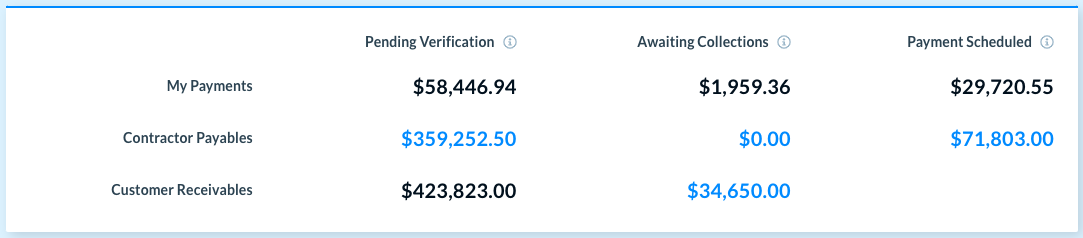
Each section shows:
Payment Verification
This is the total amount for all the payments that Denim has received for your account. Denim is working to verify and process these payments.
Awaiting Collection
This is the total amount of funds that are pending due to open invoices with your customers.
The below three categories show:
- My Payments: The total amount due to you from Denim, once your customers pay open invoices.
- Contractor Payables: Payments to your contractors for non-factored jobs. These payments will be processed once your customer pays the invoice in full, or the payment will be made from your Denim Cash based on your selected due date. This is dependent on your setup with Denim. You can bypass this for factored jobs.
- Customer Receivables: Open invoices that have been sent to your customers.
Payment Scheduled
This is the total amount that is scheduled to payout to your carriers on their respective due dates as well as the dated you can expect payment to come to you from Denim.
- My Payments: Total amount that you will receive from Denim, on the due date.
- Contractor Payables: Total amount that Denim is scheduled to pay to your contractors on the due date.
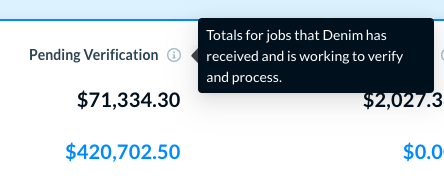
Click on the information icon to see useful information about the term, for example as below.
______________________________________________________________________________
Cash details
In this section, you can see cash details.
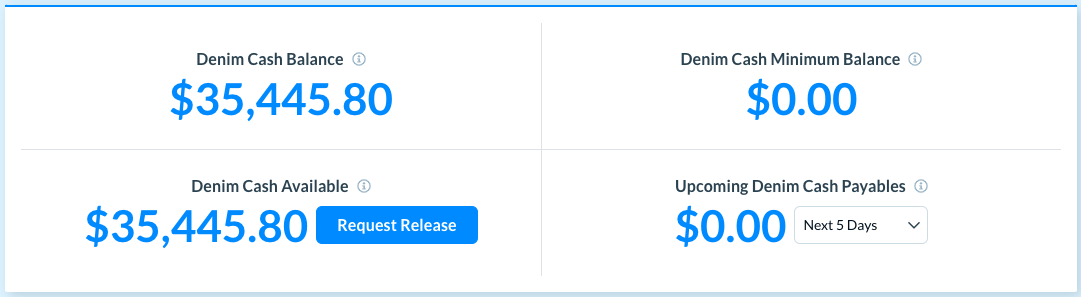
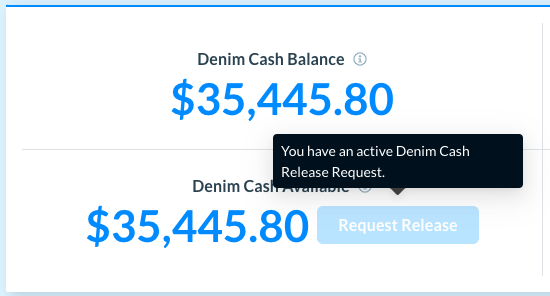
Denim Cash Balance
This is your current Denim Cash balance available
Denim Cash Minimum Balance
For customers who have a floor amount set to their account, this section will show the amount of funds required to be available in your Denim Cash, Releases can not be made that would lower your balance below this amount.
Denim Cash Available
This is the cash that is available in your Denim account and can be released.
To request a release, click on the Request Release button.
The Request a Denim Cash Release dialog opens.
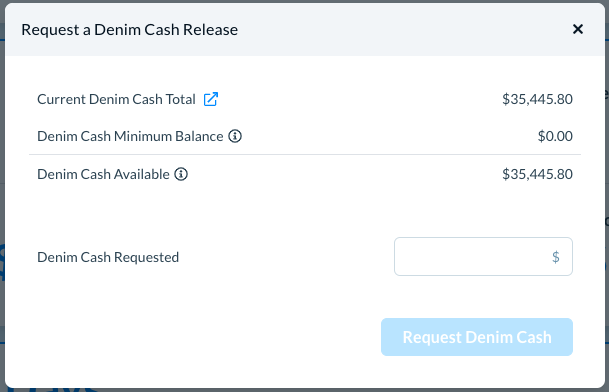
In Denim Cash Requested, enter the amount that you would like released.
Click on the Request Denim Cash button to send the cash request.
The request is lnow viewable In your Request Center.
(Please see Request Center overview for more details.)
💡Note: Once you request a Denim Cash release, you cannot generate another release request until the first request is complete.
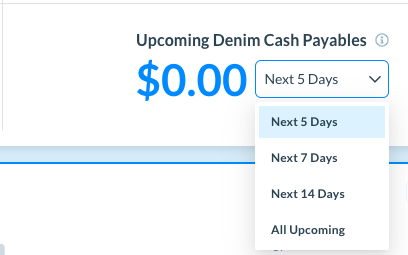
Upcoming Denim Cash Payables
In Upcoming Denim Cash Payables, you can see any upcoming payments that are due to be paid to your Denim Cash Balance. You can select the time interval to see the upcoming payments for specific time interval.
______________________________________________________________________________
See average DSO
DSO is the time taken from the approval to when the invoice is fully paid. In this section, you can see the average DSO for each month.
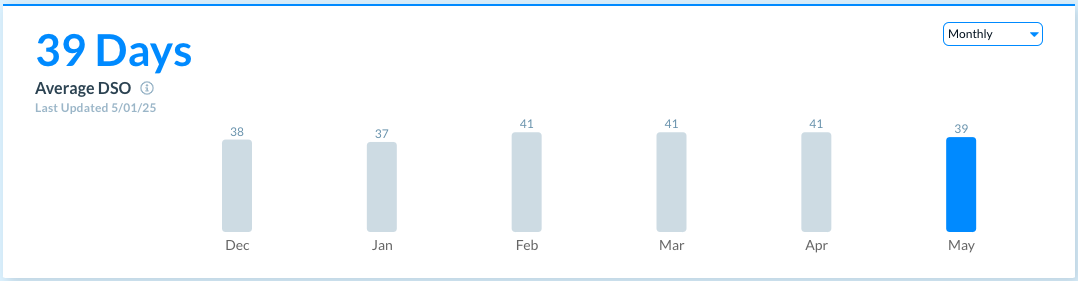
In the Monthly dropdown, select Quarterly to see the average DSO for each quarter.
______________________________________________________________________________
See the fastest and slowest paying customers
In Fastest Paying Customers, see the list of customers who are paying you the quickest.
In Slowest Paying Customers, see the list of customers who take the longest time to pay you.
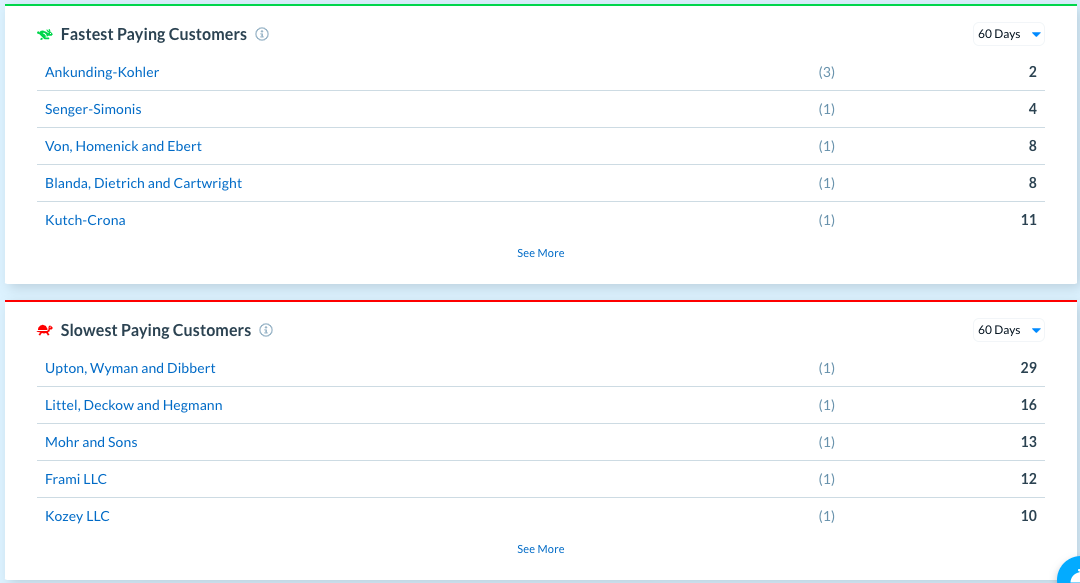
Click on See More in either list to see more customers in the respective list.
In the 60 Days dropdown, select an option to reset the customers' list for the selected time period.
______________________________________________________________________________
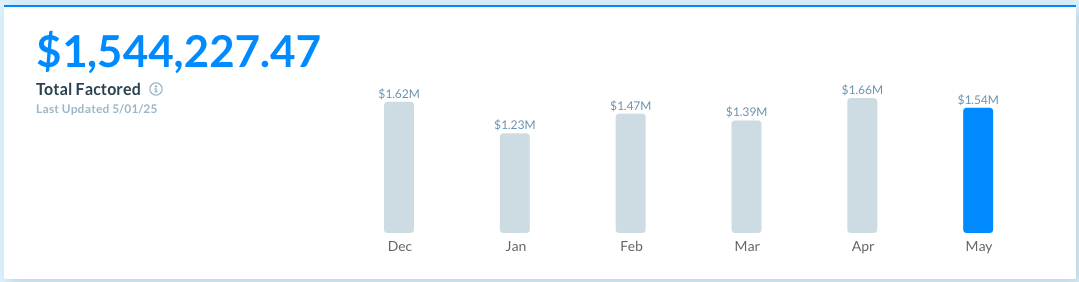
See total factored
In Total Factored, see the total receivables for all the factored jobs combined, organized by months.
*Denim shares this number to the Credit Bureaus to help you build your credit.*
______________________________________________________________________________
See most frequently used contractors
In Most Frequently Used Contractors, see the list of contractors that you have most frequently used for all the jobs combined.
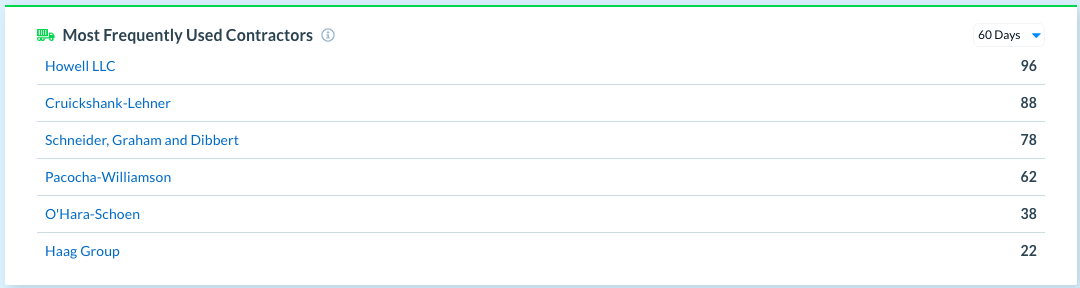
In the 60 Days dropdown, select an option to reset the contractors' list for the selected time period.
______________________________________________________________________________
See most profitable customers
In Most Profitable Customers, see the list of customers that have earned you maximum profit in a specific time period, for all the jobs combined.
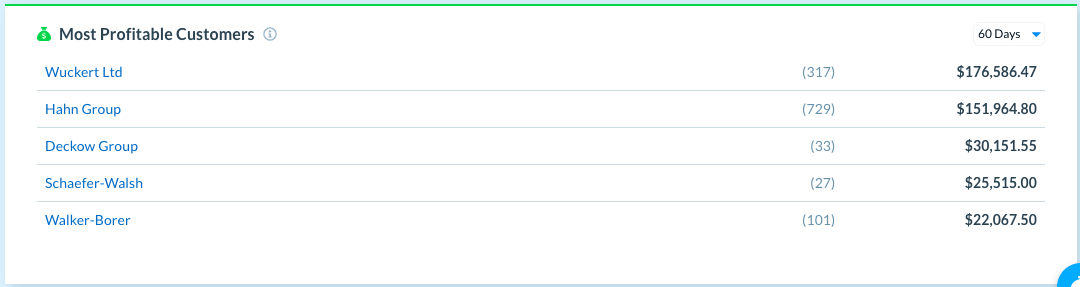
In the 60 Days dropdown, select an option to reset the customers' list for the selected time period.
______________________________________________________________________________
Actions available—Add or import jobs
On the dashboard, you can see actions to add new jobs. Please see Add a new job, and Import jobs from CSV or from TMS for more details.)
______________________________________________________________________________
How dashboard helps in your goals
The Denim dashboard gives you a quick overview of your account. With visibility to payments, cash, profitable customers, factored jobs and more, you can get an idea of your account health and pain points all in one view.