Bulk Import Jobs—from TMS
Last updated: July 1, 2026
In this article, you will learn about
💡Note: You have an option to add a new job manually, without importing a file. See Add a new job for more details.
____________________________________________________________________________________
Option to import jobs
There are two options to import jobs.
On Dashboard
Click on Dashboard in the navigation. Click on the Import Jobs button.
In the Jobs list
Click on Jobs in the navigation. In the expanded view, click on Job Board.
Click on the Import Jobs button to start importing bulk jobs.
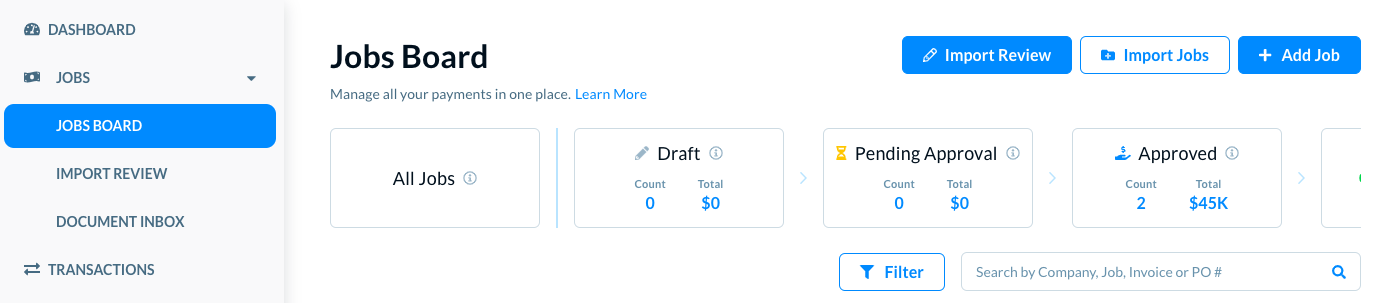
In either case, the Import Jobs model opens.
There are two options to import the jobs.
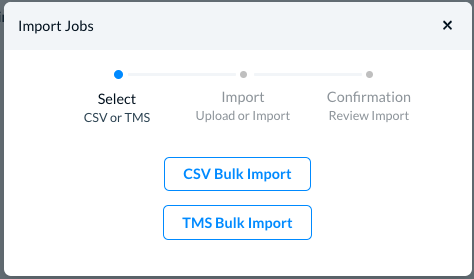
- CSV Bulk Import: Use this option to import the jobs from a CSV file.
- TMS Bulk Import: Use this option to use the TMS integration to bulk import the jobs.
______________________________________________________________________________
Bulk import from TMS
Click on the TMS Bulk Import button. Denim asks you to authenticate your TMS.
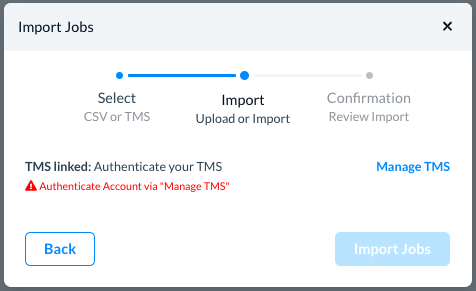
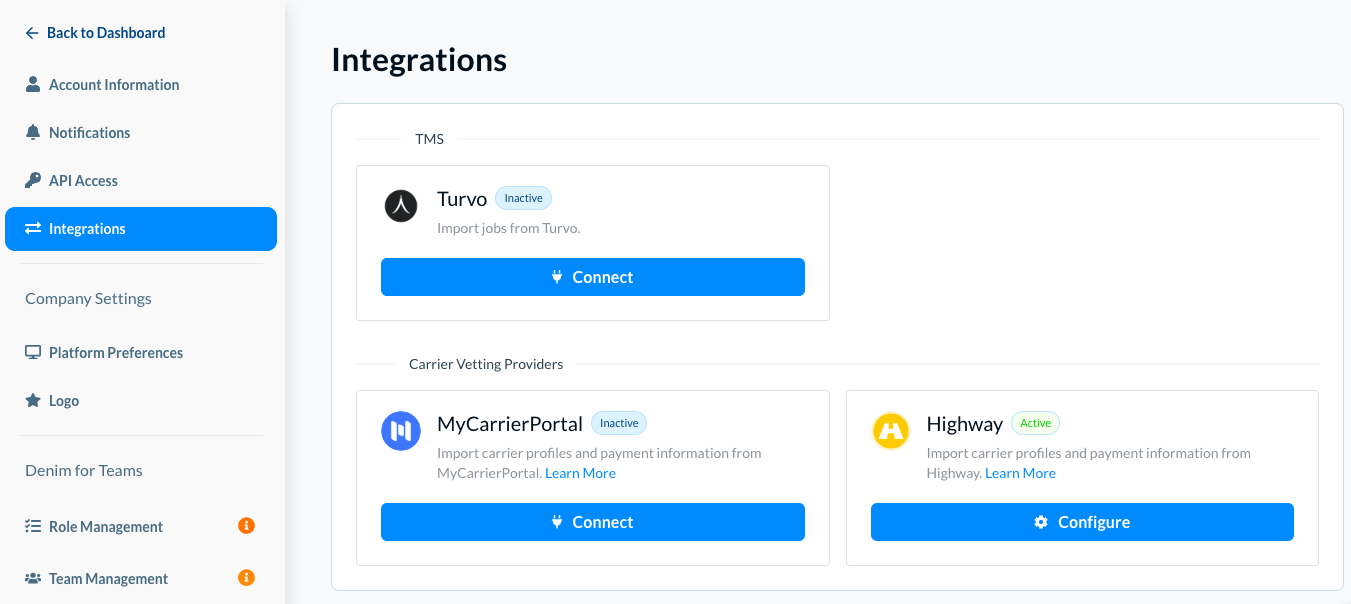
Click on Manage TMS.
The Integrations page opens where you can set up the integration. (Please see TMS Integrations for more details.)
If you import is successful, the jobs are not showing in the pending jobs list.
Click the Go to Import Review button to see the Import Review page. The jobs are processed here to fix any gaps in their structure or information and once the jobs are ready, you can see these in the Job Board, with status as drafts.
You can see these in the Import Section page.
______________________________________________________________________________
Next steps
See Import Review to resolve any gaps or mappings before the jobs are available in the jobs list