Global Settings: Payments Settings for Contractors
Last updated: June 30, 2026
In this article, you will learn
- What are payment settings at your Denim account level, for all your contractors
- Steps to set up default payment terms
- Set up default terms
- Set up custom terms
- Settings for Express Factoring
- Edit custom terms
- Delete custom terms
______________________________________________________________________________
About default payment settings for all contractors
For all the contractors in your Denim account, you can define the global settings for their payments. When you add a new contractor or when you see any contractor details during the job life cycle of invoices or payment lifecycle, these default payment settings show for the associated contractor.
However you can edit these payment settings anytime for a specific contractor, when required. You can also set up custom payment settings when you add a new contractor. (Please see Add a new contractor, or Edit payment settings for a contractor, for more details.)
______________________________________________________________________________
Steps for payment settings
Click on Settings in the navigation.
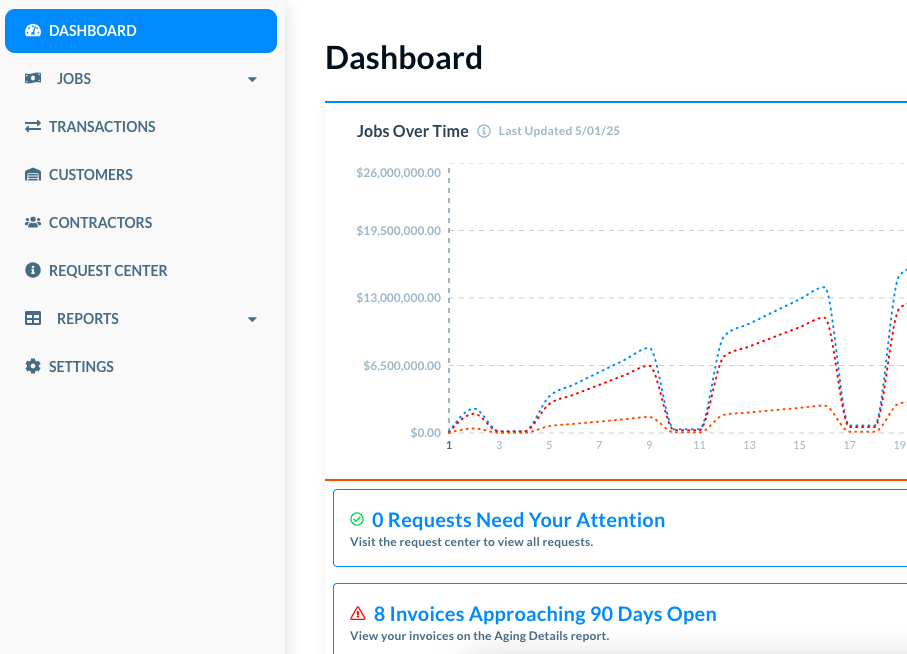
The Settings shows its own navigation in the left side.
In Payment Settings, click on Direct Payments to Contractors. The Direct Payments to Contractors settings open, as below.
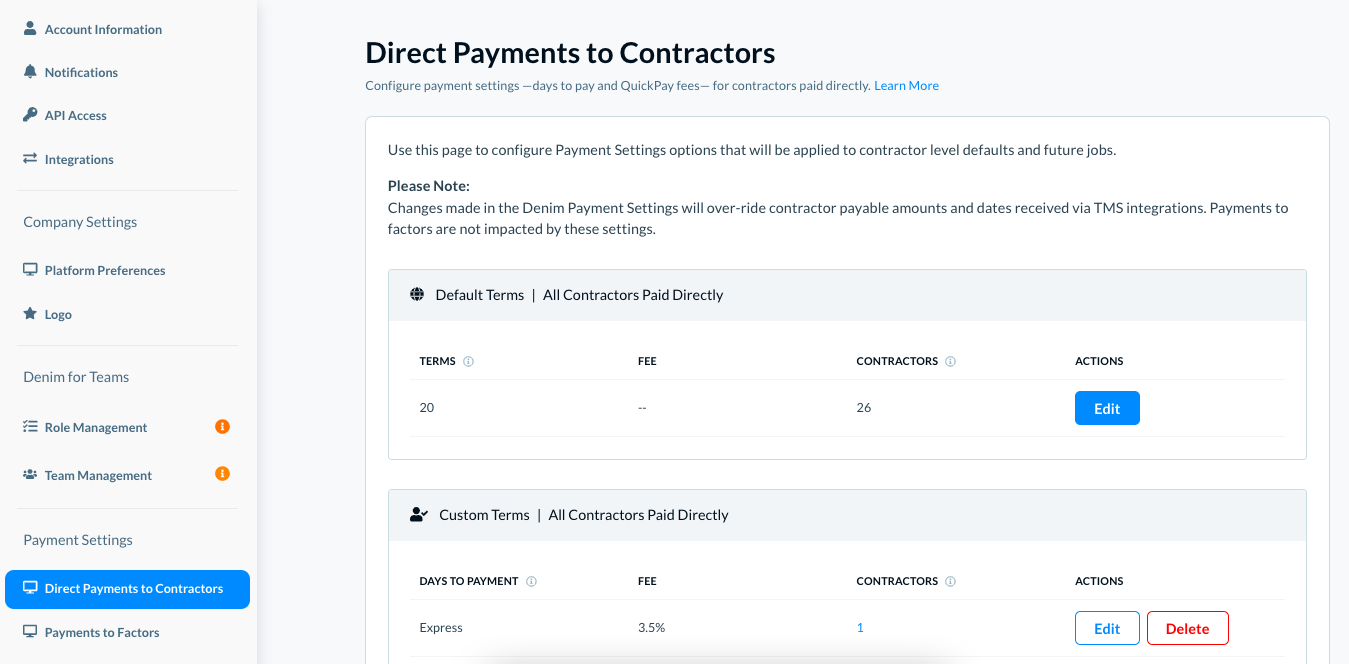
💡Note: If you make any changes here, these override the contractor payable amounts and dates received via TMS integrations. The Payments to factors are independent of these payment settings.
____________________________________________________________________________
Setup default terms
Set up the default days-to-pay settings, and these apply to all the contractors by default.
- Terms: These are the number of days after the invoice is generated for the contractor.
- Fee: The fee that QuickPay charges for their services.
- Contractors: The number of default contractors to whom these default terms apply.
Click on the Edit button to edit these terms.
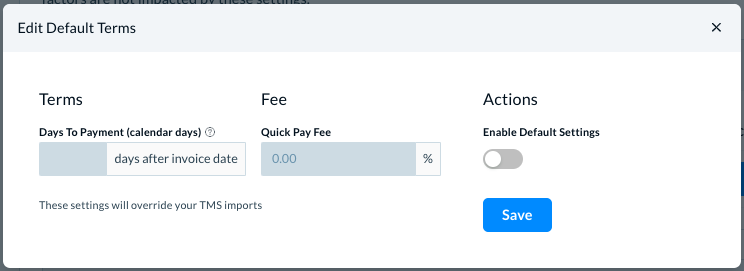
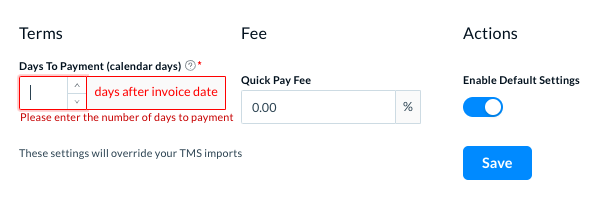
In Actions, the Enable Default Settings show that the default terms settings are not enabled. To enable these settings, slide the settings control element from left to the right side.
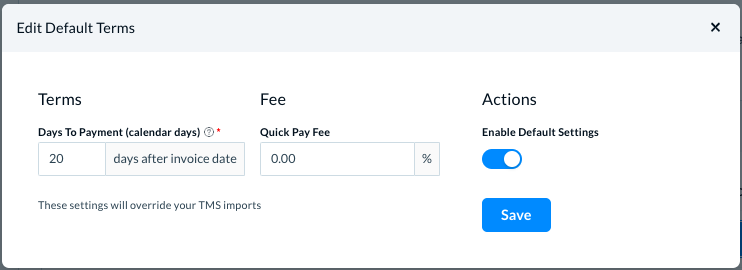
- In Days to Payment, write the number of days between the invoice date and the payment date.
- In QuickPay Fee, write the QuickPay fee as the default fee for all the contractors. This fee is a percentage of the payment in the invoice.
- Click on the Save button to save the settings.
💡 Note: These settings override the payment settings of all those contractors that you get by TMS import.
If you try to save the settings without writing the number of days, Denim asks you to enter a valid value in the number of days.
______________________________________________________________________________
Set up custom terms
Define the custom terms for the contractors—a different fee for different days-to-pay settings. These apply to all the contractors by default.
The list is empty by default.
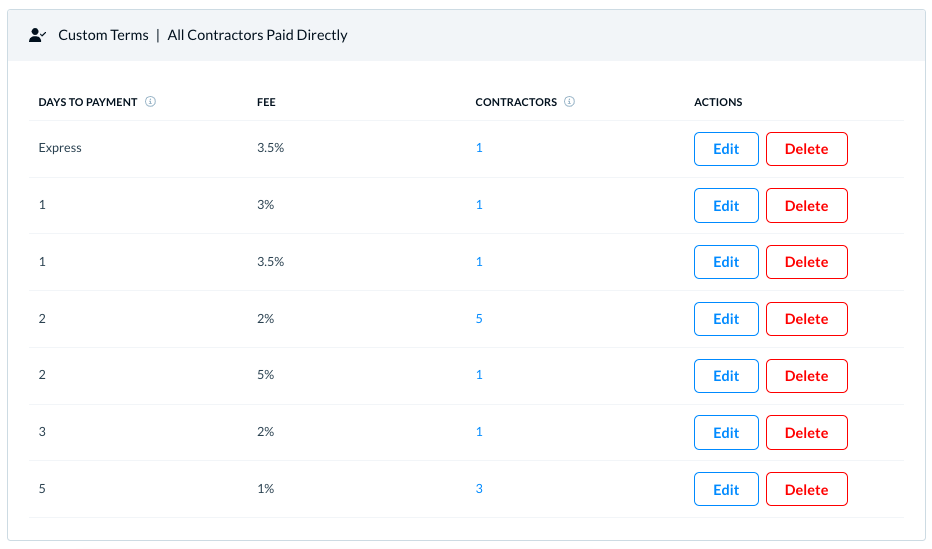
- Terms: These are the number of days after the invoice is generated for the contractor.
- Fee: The fee that QuickPay charges for their services.
- Contractors: The number of default contractors to whom these default terms apply.
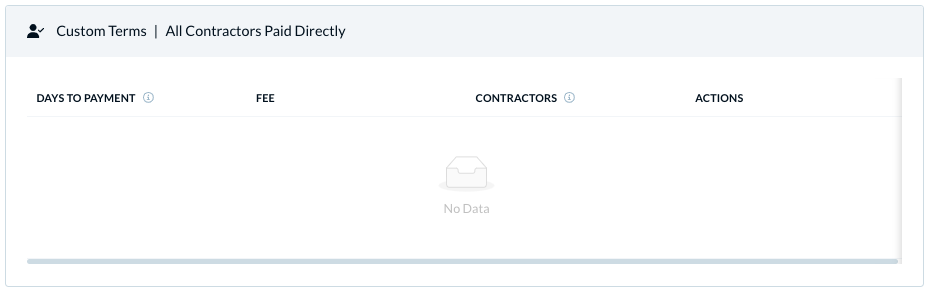
You can set up custom terms in the contractor profiles—when you add a new contractor or when you edit a contractor profile.
All the custom terms appear in the list, as below.
___________________
Express Factoring
In Custom Terms, you can set up Express factoring for a certain fee for the contractors. (Please see Express Factoring for details.)
Click on the Edit button change the Express factoring fees, or to disable express factoring, if required.
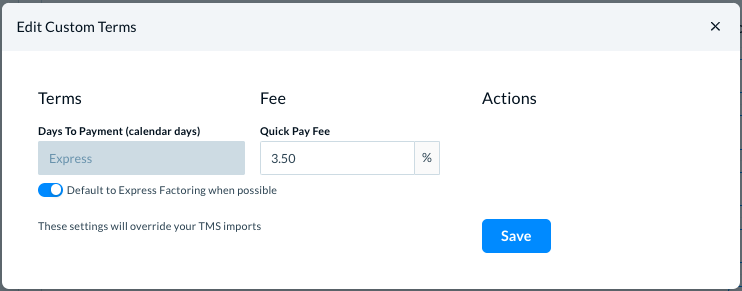
The Default to Express Factoring when possible, setting is enabled which means that Express Factoring is enabled for the specific QuickPay fee.
If you disable these settings, the Days To Payment field is enabled now where you can enter the number of days for the custom terms.
Click on Save to save the changes.
___________________
Edit custom terms
In the list, locate the custom terms that you want to edit. Click on the corresponding Edit button. The Edit Custom Terms modal opens.
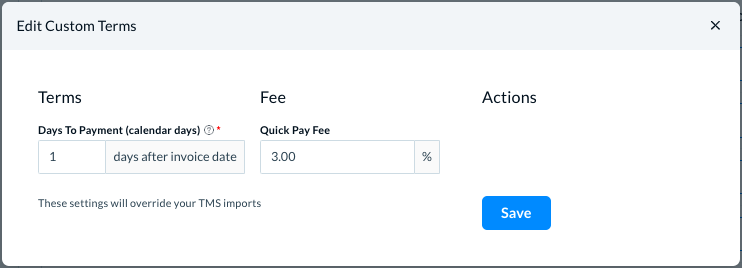
Make changes as required, either in the number of days, or in the free.
Click on Save to save the changes.
💡 Note: These settings override the payment settings of all those contractors that you get by TMS import.
______________________
Delete custom terms
If you delete custom payment terms, all the contractors who have these custom payment terms settings are assigned the default payment terms.
In the list, locate the custom terms that you want to delete.
Click on the corresponding Delete button. Denim asks you to confirm if you want to delete it.
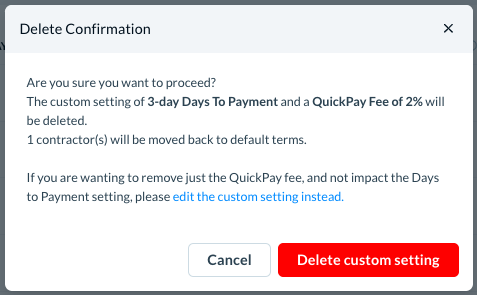
- Click on Delete custom setting to delete this specific custom payment term setting.
- Click on Cancel to cancel this delete action.