Add a new customer
Last updated: June 30, 2026
In this article, you will learn about
- The Denim customers and how it works
- Steps to add a new customer: If customer is already listed in Denim
- Steps to add a new customer: If customer is not listed in Denim
- Followup steps after adding a new customer
- Answers to some common questions about customers
About customers
💡Note: Before Denim approves a factored job, it performs a credit check and establishes a credit line for each customer. We recommend you to add all your customers to your Denim account as soon as possible when your account is approved so that your jobs are processed quickly. (Please see How Denim sets up new customers for more context about customer onboarding.)
______________________________________________________________________________
Option to add a new customer
There are two options to add a new customer.
___________________________
In the customers list view
Click on Customers in the navigation. The list of customers opens, as below.
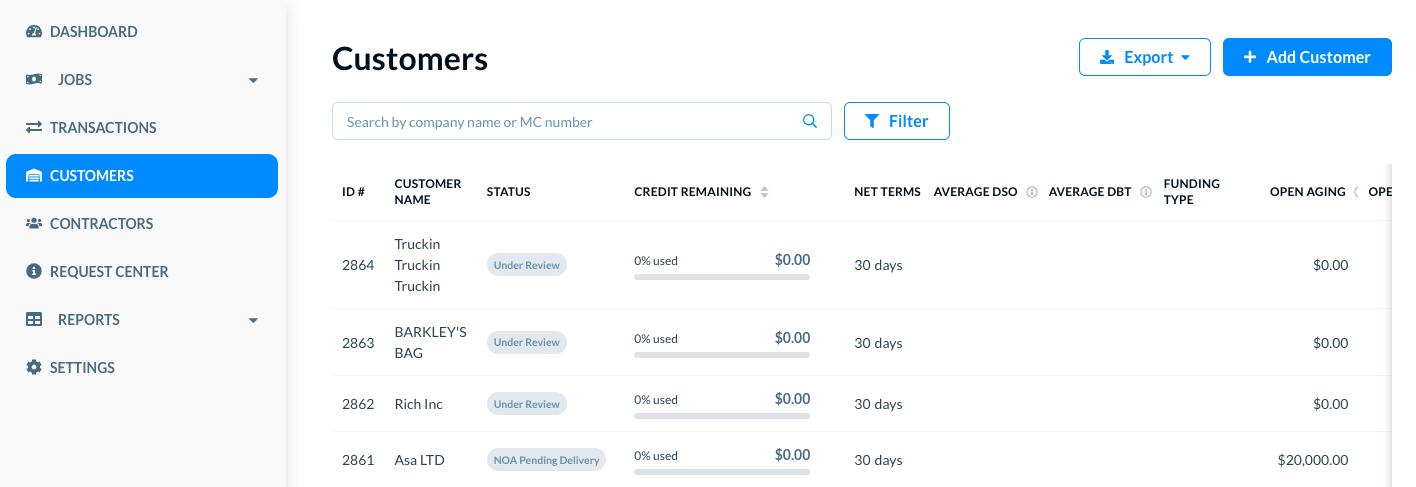
Click on the Add Customer button to add a new customer.
________________________
While adding a new job
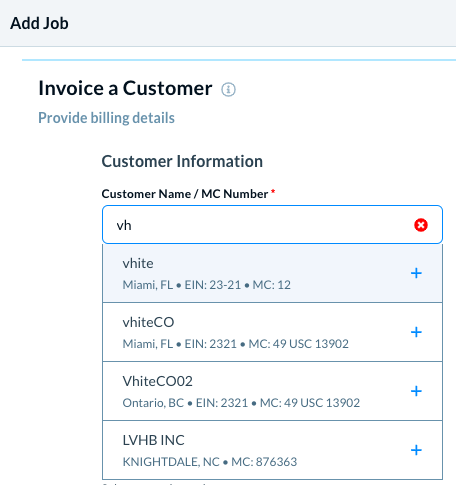
When you add a new job, the Invoice a Customer section enables you to add a new customer.
______________________________________________________________________________
Steps to add a new customer
In either of the above two options, when you start writing the customer name or the MC Number, the matching customers show.
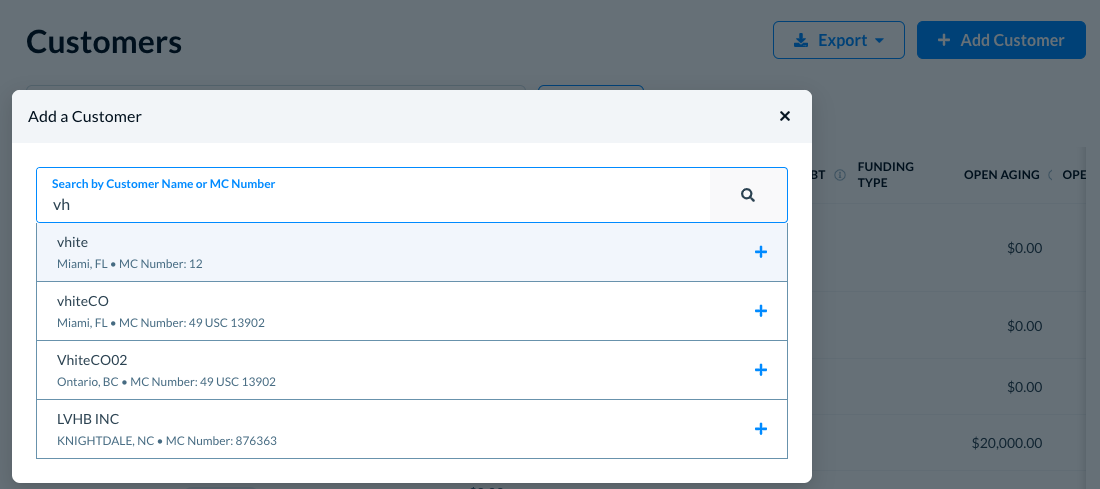
There are two possibilities here.
- The customer is already listed in Denim
- The customer is not listed in Denim
___________________________________________
If the customer is already listed in Denim
Write the customer name or MIC number. If this customer is already available in Denim, you set up a new customer relationship, as below.
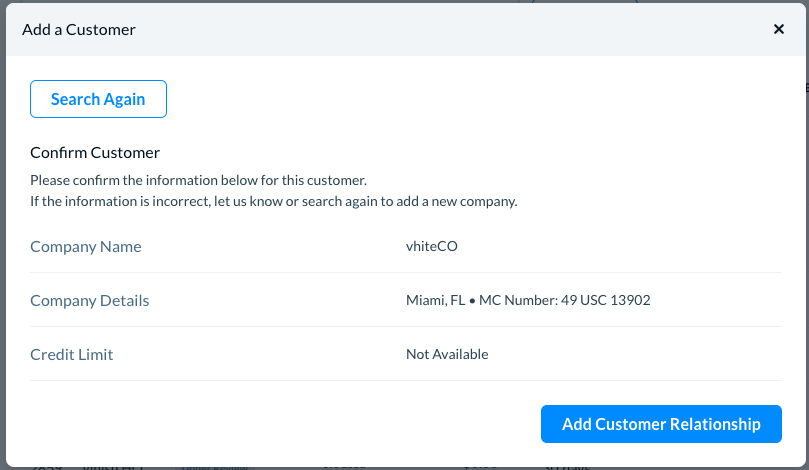
If this is not the correct customer that you want to add, click on the Search Again button to search it again. If the customer is not listed, you have an option to add a new customer relationship.
Click on the Add Customer Relationship button.
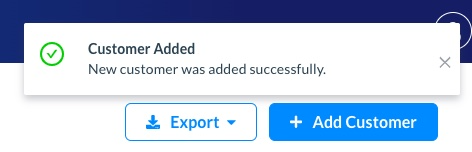
The customer is added, as you can see the confirmation.
_______________________________________
If the customer is not listed in Denim
If this customer is not available in Denim, you can add them as a new company.
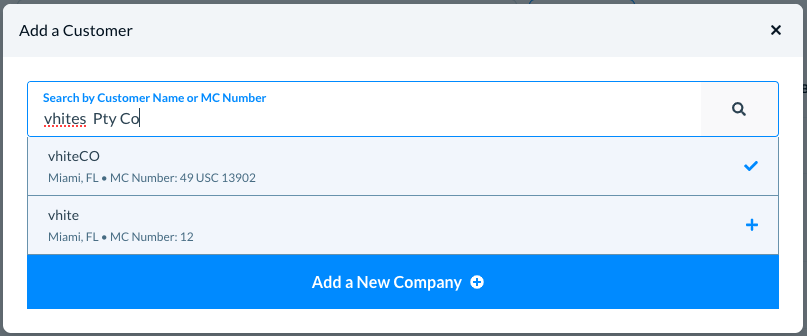
Click on the Add New Company button. The form opens where you can add the details of new customer.
Add the customer details, including the credit amount, contact details, and the address. If you provide the complete address, the customer approval is faster.
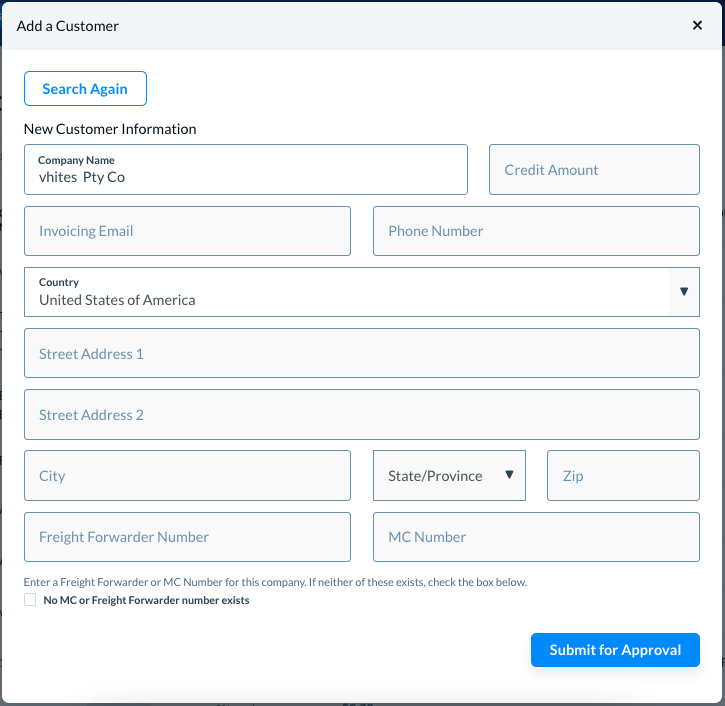
If the MC Number or the Fright Forwarder Number does not exist, select the No MC of Freight Forwarded number exists box.
Click on the Submit for Approval button.
This new customer is add to the list of customers. (Please see See and use list of customers for more details.)
In the Status column, the status of this new customer is Under Review. When the customer is approved, the status changes accordingly.
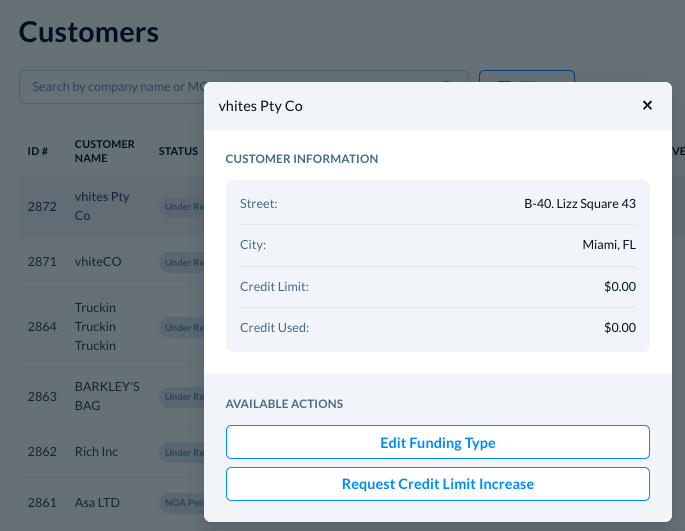
Click on the customer name to see its details, such as below.
💡Note: The new customer NOA needs verification.
Credit Used: If you create a new job for this customer and submit the job for funding, the Credit Used amount changes accordingly. (Please see Add a new job for more details.)
See it in Request Center: The new customer approval is logged in the Request Center. You can see the request details, and the status in the Request Center. (Please see Request Center overview for more details.)
______________________________________________________________________________
Customer approval status
If you see that the customer approval request is Declined, you can submit jobs as non-factored.
___________
Next steps
- Edit Funding Type (Please see Edit funding type for more details)
- Request Credit Limit Increase (Please see Request credit limit increase for more details)