See and manage job details
Last updated: August 17, 2026
In this article, you will learn
For any job available in the jobs board, you can see its details any time, track its progress such as for the documents approval, or the payments.
______________________________________________________________________________
Option to see job details
You may arrive on the Job Details page in multiple ways. For example:
Jobs Board: In the navigation, click on Jobs > Job Board to navigate directly to the list of all your jobs. Locate the target job that you want to open and then click on that job. (Please see See and use list of jobs for more details.)
Transactions page: In the navigation, click on Transactions. A list of transactions opens. Click on any row and the transaction record expands to show the details. The related job numbers show for that transaction. Click on the job number to open and see the job details. (Please see our See and use list of transactions article for more details on the Transactions page.)
Reports: Several reports include links to Job Details if you are seeking more information. If you see job numbers with links, clicking those links will take you to the job details. (Please see our Reports article for more details about using reports.)
______________________________________________________________________________
Manage a job—when the job status is Approved
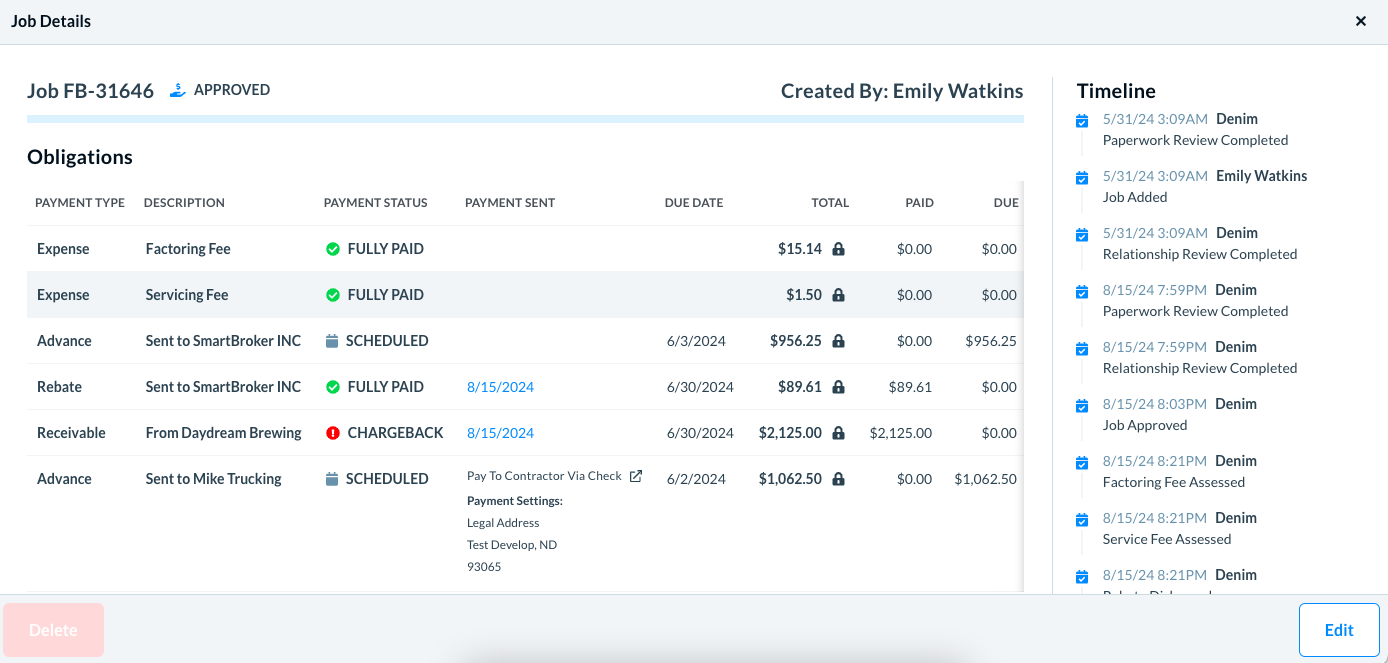
Clicking any job opens the Job Details view. At the top, you can see the job number, the job status, and the user who created it.
____________
Obligations
In the Obligations section, you see a detailed structure of the job for the payment types, the corresponding payment status, the associated dates for that payment, the amount, and some additional information for your reference.
Payment Type
Denim uses the term obligation for each component payment that makes up a job. See different payment types that are part of the job—the expenses, receivables, or the advance.
Receivable: This is the amount billed to your customer
Advance to Contractor: The payment sent from Denim to the contractor
Advance to Broker: The advance from Denim to the client
Expense: Factoring Fee or Job Fee—this is the fee Denim charges for our services
Rebate: The rebate owed to the client once the job is complete
Description
The description of the payment type, for example, the fee type or to whom the payment is being sent.
Payment Status
Payment status depends on job type and where in the job lifecycle your job currently sits. The related icons for each payment record helps you scan the job details quickly.
Pending: This payment is pending, awaiting another action to occur first. Usually Pending payments indicate the job as not been approved by Denim.
Expected: The line item is awaiting payment from your debtor before Denim takes action. You will see this status on the receivable line item for all jobs, and on other payment types for non-factored jobs
Scheduled: The payment is approved and funds are ready to be sent on the listed Due Date.
Fully Paid: Payment has been made in full and this obligation is closed.
Note: A chargeback will appear as fully paid. If debtor did not pay the invoice and Denim has charged it back to the client. To view detailed information about chargebacks and payment deductions, check the Denim Cash report on your dashboard, which provides a breakdown of payment calculations including any chargeback deductions applied.
Shortpaid: The obligation is partially paid
Chargeback Deductions
When a payment amount appears lower than the original invoice amount, it may be due to a previous chargeback being deducted from the current payment. The chargeback is applied against the net payment, resulting in a reduced amount credited to your account.
Payment Sent
Dates are populated in the Payment Sent column when a transaction occurs.
When the Payment Status is Fully Paid, the Payment Sent column shows the date and time of the payment processing, and the associated Account and Routing, as shown below.
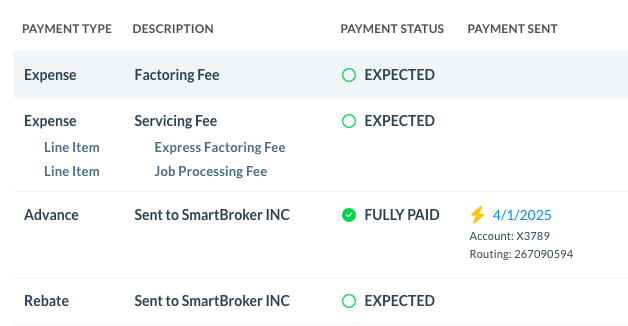
💡 Note: You can click on the date to see the transaction details on another page.
Due Date
The date of the corresponding payment date.
Receivable: If the payment type is a Receivable, you can see the expected payment date from your customer. This is based on the Due Date entered when submitting the job, and defaults to 30 days from the invoice date unless manually modified.
Scheduled Payable: If the payment type is a contractor or client advance on a factored job, and the status is Scheduled, the Due Date is the date the payment will be sent. This is based on the dates you selected during job entry.
Expected Payable: The due date listed is based on the date selected during job entry, but Expected status indicates a non-factored job where the contractor payable will be made using the funds from the customer's payment. In this case, the payment will not be made on the Due Date unless the customer has paid the invoice.
Total
It shows the total amount of that payment. A small icon for each payment gives you some information of what it means. For example, as below.
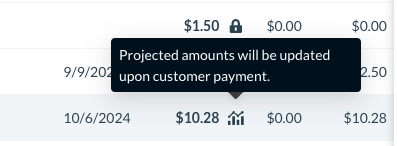
💡 Note: These are not the only possible obligations in a job. Depending on the use case in your job, these can be different. For example, sometimes the Payment Type shows records for each Line Item, if it applies, as below.
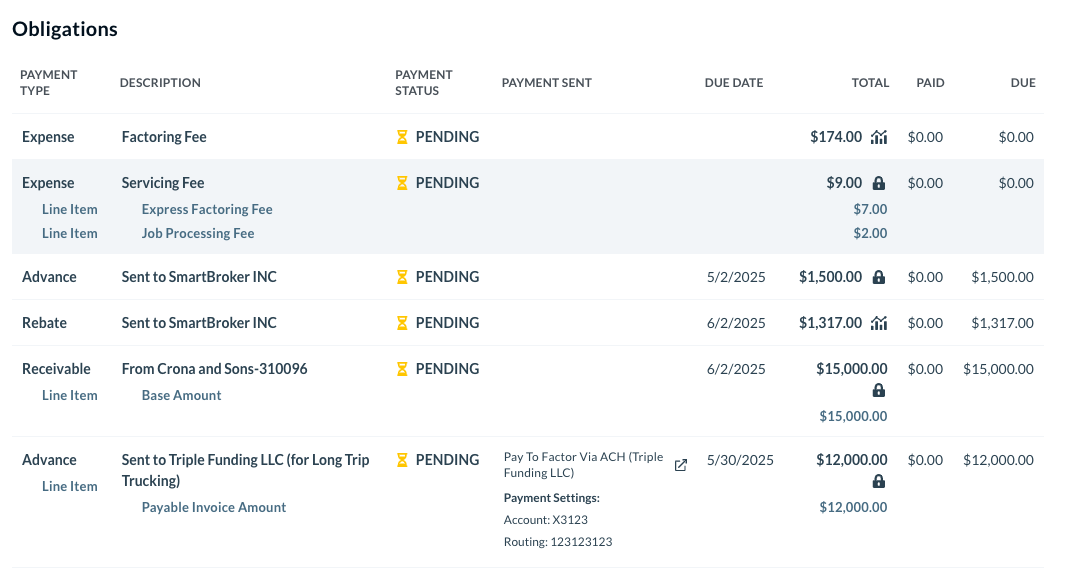
In this example:
The Expense shows two line items—Express Factoring Fee, and Job Processing Fee.
The Receivables show one line item—Base Amount.
____________
Documents
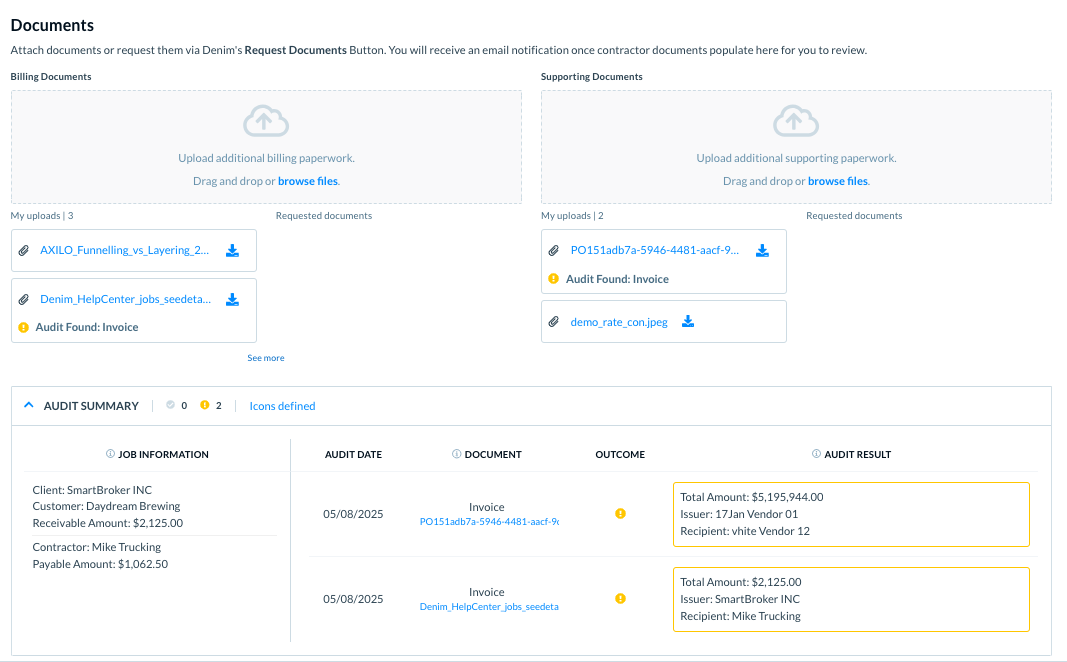
In the Documents section, see the documents that are attached with this job. These are billing documents and any supporting documents.
(Please see Add and manage job documents for more details about the document cycle and the document audit.)
_________
Timeline
In the Timeline section, see a log of records when the job undergoes some progress, an update, or an action by Denim, or by you.
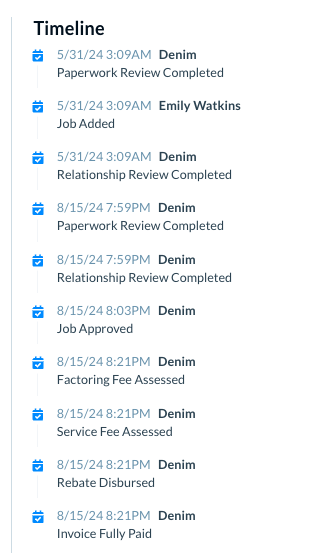
Each record shows:
The date and time of the action or update
The name—whether your name or Denim is associated with that action
The type of action, for example, it can be:
Paperwork Review Completed
Job Added
Relationship Review Completed
Job Approved
Factoring-Fee Assessed
Service-Fee Assessed
Rebate Disbursed
Invoice Full Paid
💡 Note: These are not the only possible activities in a job's timeline. Depending on the use case in your job, these updates can be different sometimes.
__________________
Steps Remaining
In the Steps Remaining section, see the pending steps in this job.
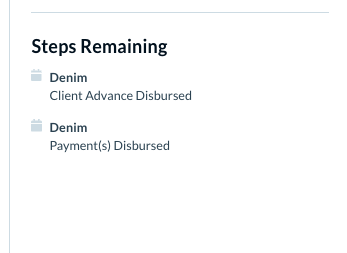
💡 Note: These are not the only possible activities in the remaining steps. Depending on the use case in your job, these steps can be different for different jobs. For example when the job status is Complete, there are no remaining steps.
__________
Job notes
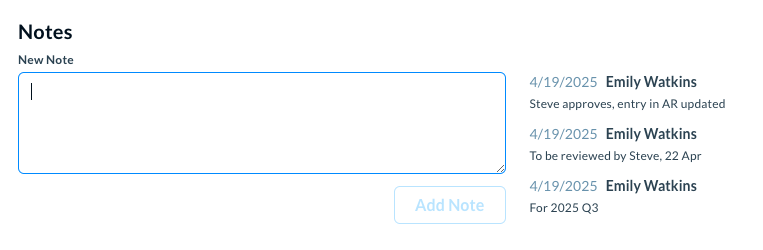
In the Notes section, add or see notes for this job. For example, you can write a reminder for some tasks or follow up, or for a payment collection.
(Please see Add and manage job notes for more details.)
______________________________________________________________________________
Manage a job—when the job status is Draft or Pending Approval
If the job status is Draft or is Pending Approval, the job details show in the same form that you see while adding a new job. You can edit the job details, as required. Please see our Edit job details article for more details.
If the job is approved but the contractor payables are yet not paid, you can edit the payables in such cases. (Please see our Edit payables for approved jobs article for more details.)