See and use list of contractors
Last updated: June 30, 2026
In this article, you will learn about
- How to see the list of all contractors
- See different actions in the list
- Using Filters
- Using Search
- Export the list of contractors to PDF or CSV
- Global actions in the list
- Answers to some common questions about contractors
______________________________________________________________________________
Locate the contractors list
Click on Contractors in the navigation. The list of all the contractors opens.
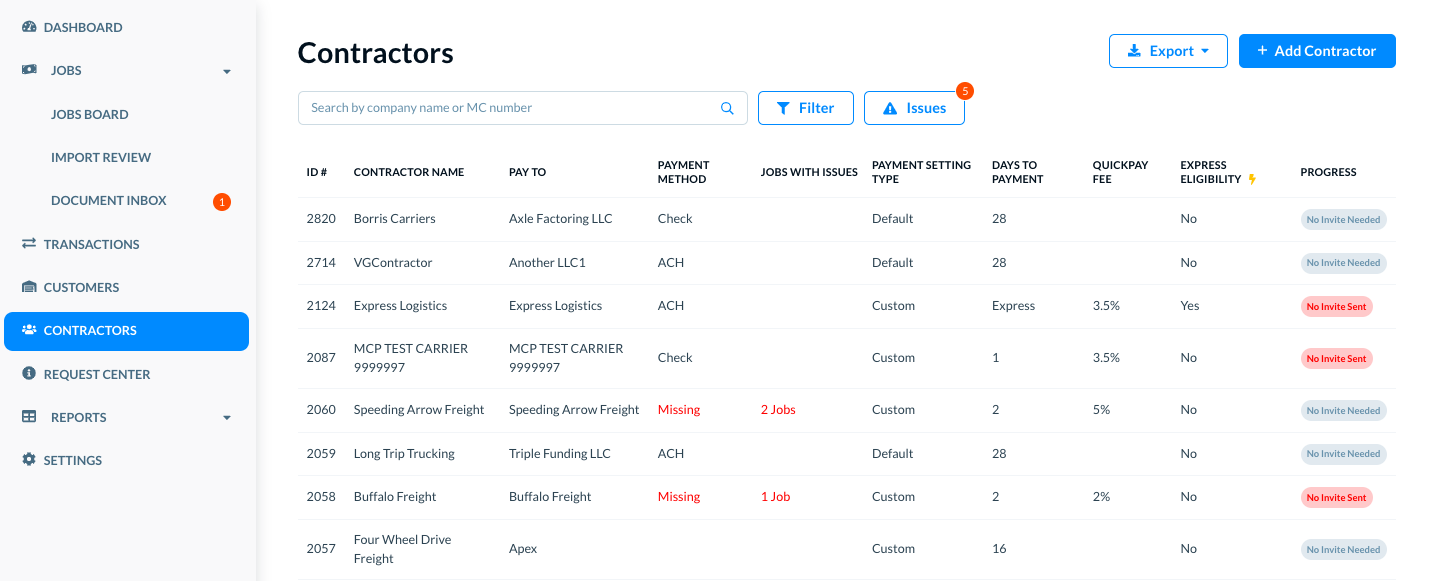
On this page, you can see different options:
- See the list of contractors for basic details, and some actions for each contractor.
- Use filters and search to see specific contractors based on the selected filters.
- An option to add a new contractor.
- Options to export the contractors' list to a PDF or a CSV file.
- See payment-related issues for the contractor, with options to see the issue details
- Take different actions on each contractor depending on their status progress, payment settings, and other factors related to their account
All these options are explained in the following sections in this article.
______________________________________________________________________________
The contractors list
The list shows you following details of all the contractors in this Denim account.
ID #: The unique contractor ID of the contractor.
Contractor Name: The name of the contractor.
Pay To: The name of company whom you will pay for this contractor, it can be their factor, or the contractor's own company if the payment is direct.
Payment Method: The payment method such as Check or ACH. If it shows Missing, it means that the payment method is not added for the customer. (Please add Set up contractor's payment method for details.)
Jobs With Issues: The number of jobs that have open issues such as the payment issues with this contractor.
Payment Setting Type: The payment setting type whether it is Custom or Default. (Please add Set up contractor payment settings for details.)
Days to Payment: The Days-To-Payment settings for this contractor. (Please see Setup contractor's Days-To-Payment for details.)
QuickPay Fee: The QuickPay fee that applies to this contractor. (Please see QuickPay management for details.)
Express Eligibility: Whether the contractor has enabled the Express Eligibility. (Please see Express Factoring for details.)
Progress: The account status of the contractor. The options are:
-
No Invite Needed: An invite is not required because the payment information was already provided by client manually.
-
No Invite Sent: The contractor needs an invite but you are yet to send them an invite.
-
Invite Sent: An invite has been sent, but the account creation process has not yet been completed.
-
Done: Contractor has completed the account creation steps and has an active carrier dashboard account.
______________________________________________________________________________
Actions for each customer in the list
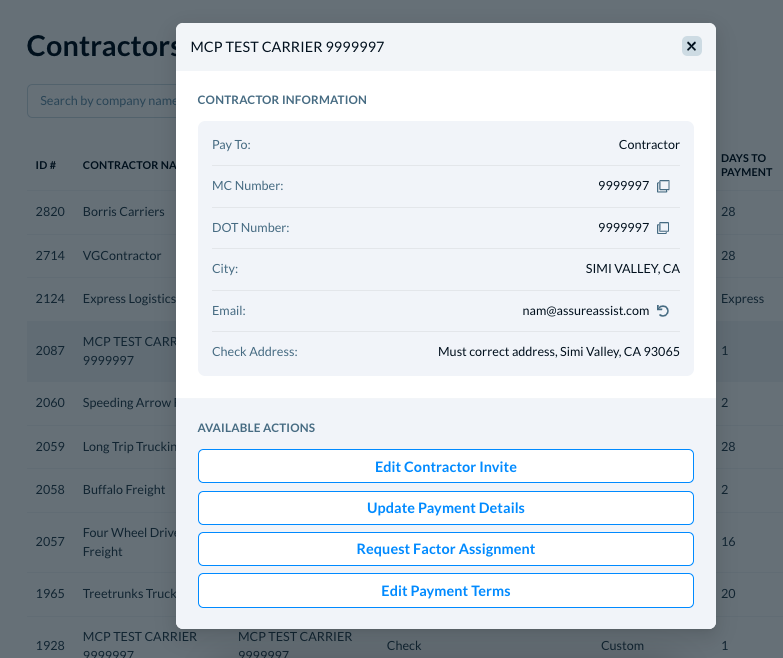
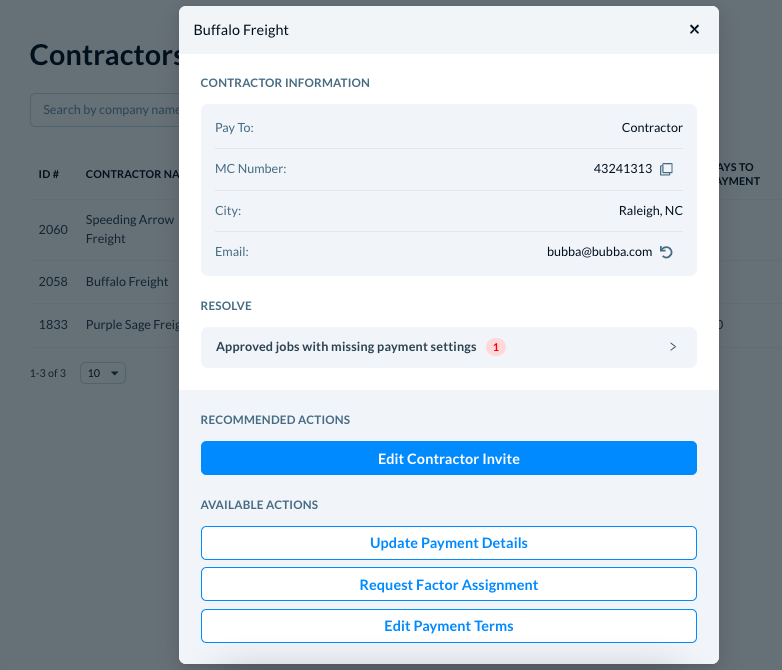
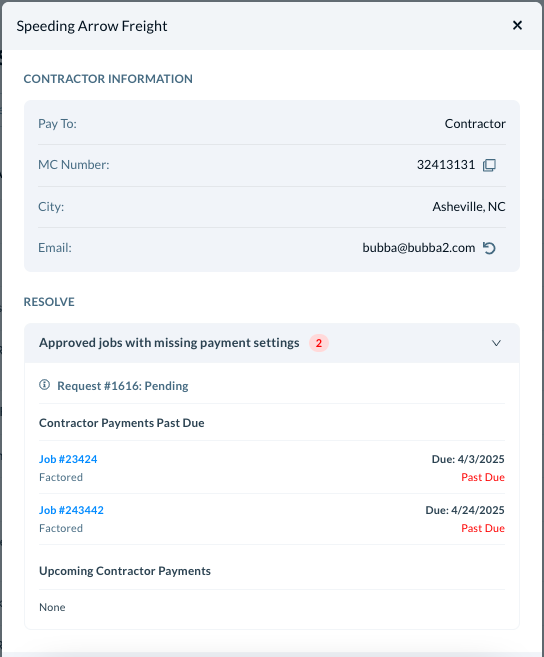
Click on any contractor and the contractor details open in a modal. What you see in the modal depends on different factors such as:
- Whether the customer has any unapproved jobs pending at their end
- Whether the payment methods are added or are missing for the customer
- Whether the funding type information is added for the customer
Here are some examples of what you see in different use cases.
- Please see Edit payment method for a contractor
- Please see See approved jobs with missing payment details for a contractor
- Please see Request factor assignment for a contractor
- Please see Update payment terms for a contractor
- Please see Request for change in credit limit for a contractor
______________________________________________________________________________
Using filters
While looking at the list, you can filter the list to see specific types of contractors.
Click on Filter to see different filters for the contractor' list.
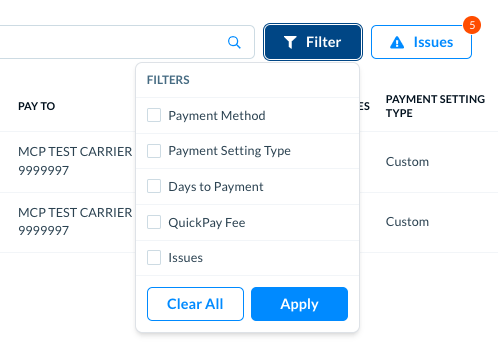
_____________
Apply Filters
Select a filter, and you can see options to set the filter values.
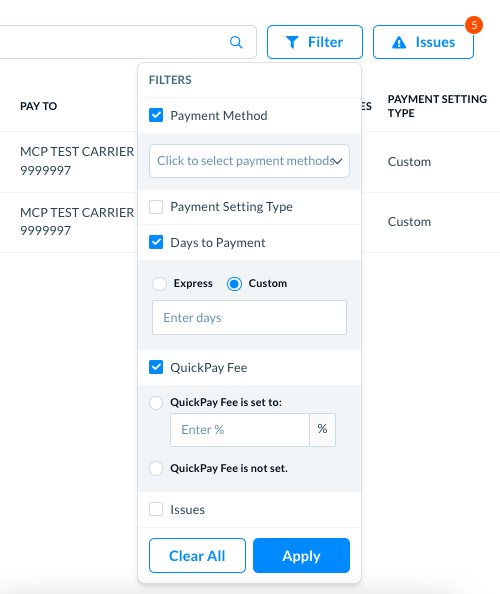
You can apply a combination of filters. For example select the QuickPay Fee filter. Write the fee in the available space to see only those contractors for whom the QuickPay Fee is set to this specific value.
Click on Apply and the list shows you only those contractor that match with the selected filters.
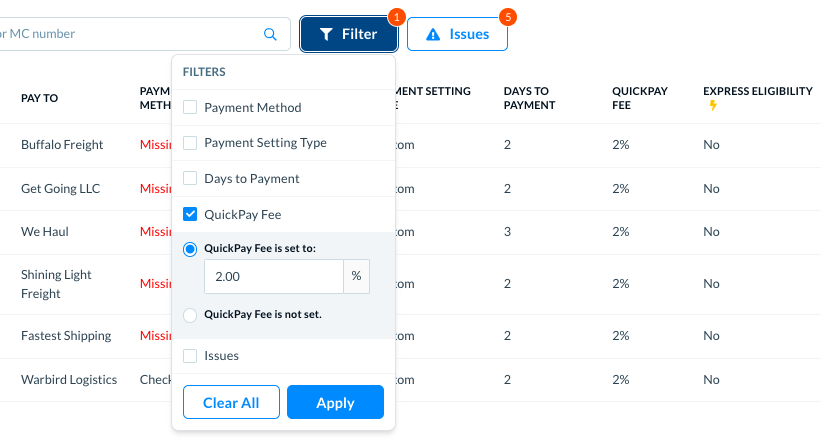
When you apply one or more filters, the Filter button shows you the count of filters that you have applied to the list.
_____________
Clear Filters
To clear the filters, click on the Filters button.
- Click on the Clear All button to clear all the filters.
- Clear the box for specific selected filter to clear it.
______________________________________________________________________________
Using Search
While looking at the list, you can search a specific contractor by their name or ID. When you start writing in the Search field, the list updates automatically. Here is an example for your quick reference.
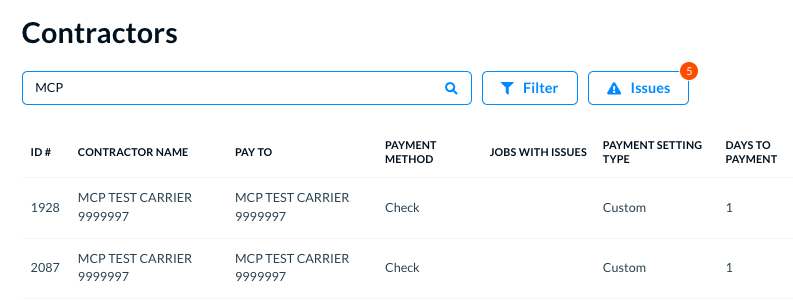
______________________________________________________________________________
Export Contractors
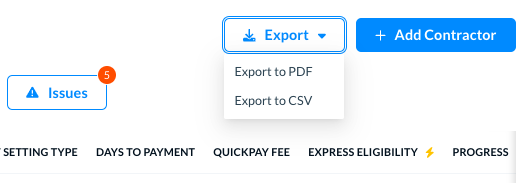
You can export the list of all contractors to a PDF or a CSV file.
Click on the Export button. The two options appear.
Export to PDF
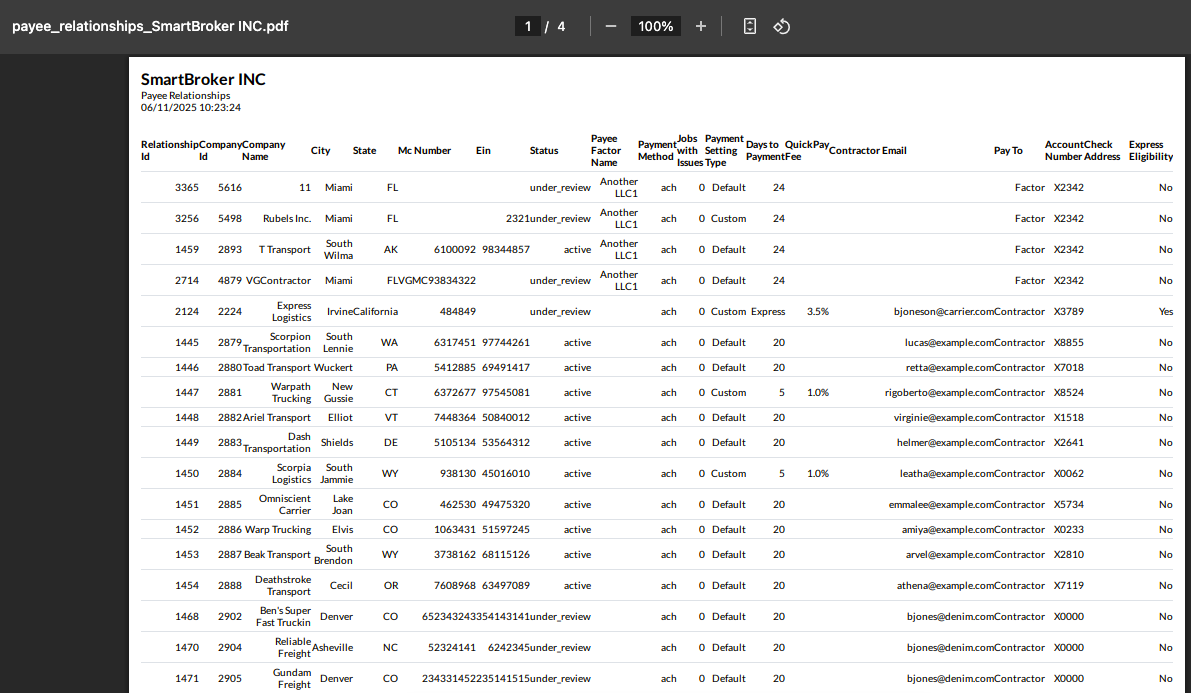
Select the Export to PDF option to export the contractors' list to a PDF document. The PDF downloads to your local machine. You can open it and it shows as below.
Export to CSV
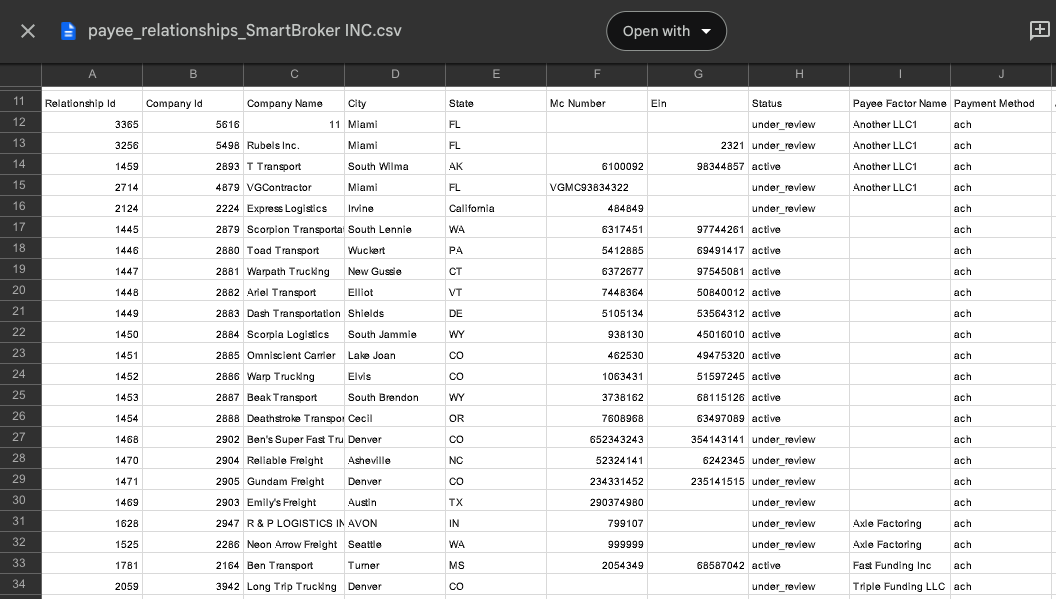
Select the Export to CSV option to export the contractors' list to a CSV file. The file downloads to your local machine. You can open it and it shows as below.
______________________________________________________________________________
The global actions
At the top of the list, you can see some actions.
Add Customer: Click on this button to add a new contractor. (Please see Add a new contractor for the detailed steps.)
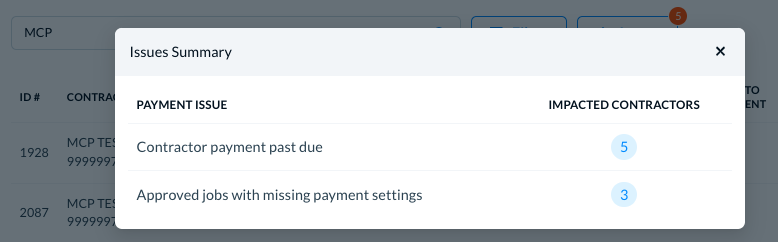
See Issues: Click on the Issues button. A modal shows the payment issues, as below. (Please see Resolution Hub: Contractors Issues for more details.)
______________________________________________________________________________
Answers to some common questions
Q:
A:
Q:
A: