Request Center Overview
Last updated: October 27, 2026
In this article, you will learn
- What is the Request Center
- How to see the list of requests
- Using Filters
- Using Search
- How to see the request details
___________________________________________________________________________
About Request Center
The Denim Request Center is your centralized reference to all the requests that you make, for approvals, for sharing documents, for requests from customers or contractors or Denim, and for other workflow specific activities.
The Request Center helps you build asynchronous communication with Denim for the status, concerns if any, and to track the progress of different actions in the workflow.
____________________________________________________________________________
See the Request Center
Click on Resource Center in the navigation. The Resource Center page opens.
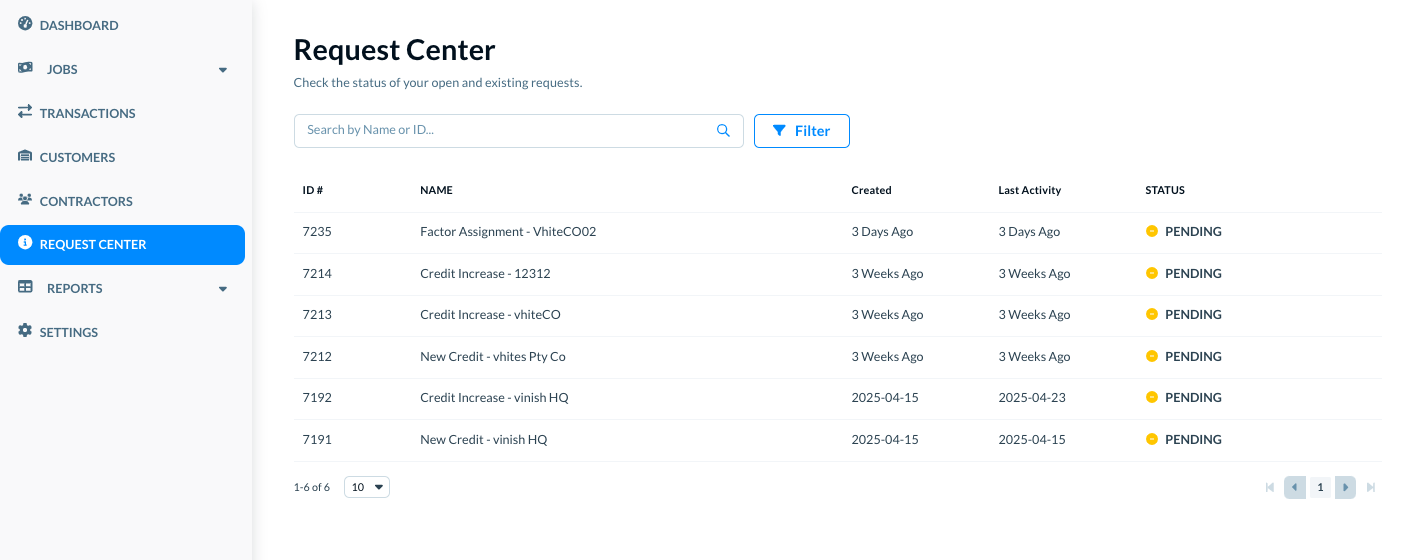
On this page, you can see different options:
- See the list of all requests
- Use filters and search to see requests
- See details of each request
All these options are explained in the following sections in this article.
______________________________________________________________________________
See the list of requests
In list shows you following details of each request.
- ID#: The unique ID of each request. You can use this ID as a reference for internal communication.
- Name: The request name—it shows the type of request and the associated entity for example the job ID or the contractor name, or the invoice number, as it applies to that specific request.
- Created: The date when the corresponding request was created.
- Last Activity: The date when the request had any last activity on it, for any context or reason.
- Status: The status is request, whether it is Pending, Cancelled, Approved, Declined, or Needs Attention.
______________________________________________________________________________
Using filters
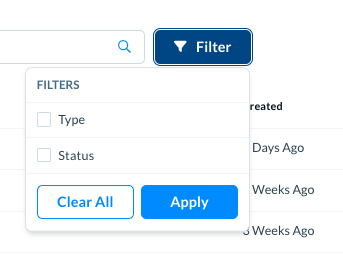
While looking at the list, you can filter it to see specific types of requests.
Click on Filter to see different filter options.
_____________
Apply filters
Select a filter and you can see options to set the filter values.
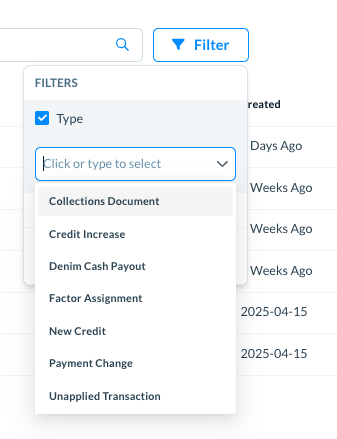
You can apply a combination of filters.
The Request Type filters:
- Factor Assignment
- Payment Change
- New Credit Limit
- Credit Limit Increase
- Collections Document
The Request Status filters:
- Needs Attention: You need to pay attention to this request, and notifications will continue to be sent.
- Pending: The request is in the queue for the Denim team.
- Approved: The request is approved and fulfilled. Once the status is fully updated to Approved, notifications stop automatically. This notification behavior does not change what the Approved status means. If a request shows Approved but notifications continue, or its status does not update as expected, contact Support to check that specific request.
- Declined: The request is not approved, the description is in the request comments.
- Cancelled: The request is cancelled and no further action is needed.
For example select Type.
Select one or more request types such as Denim Cash Payout or Payment Change.
Select Status and select one or more request status, as required.
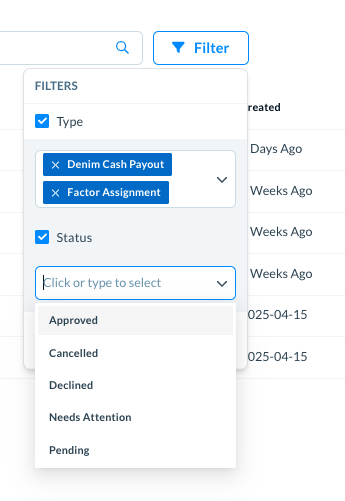
Click on Apply.
_____________
Clear filters
To clear the filters, click on the Filters button.
- Click on the Clear All button to clear all the filters.
- Clear the box for specific selected filter to clear it.
______________________________________________________________________________
Using Search
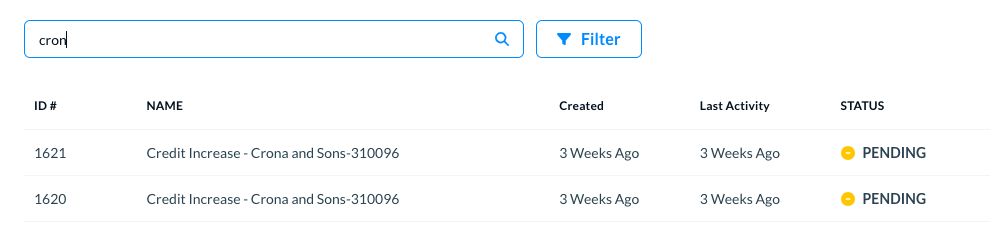
While looking at the list, you can search a specific request by their name or ID. When you start writing in the Search field, the list updates automatically. Here is an example for your quick reference.
______________________________________________________________________________
Request Details
Click on any request in the list. The request opens and you can see following actions and options in request details.
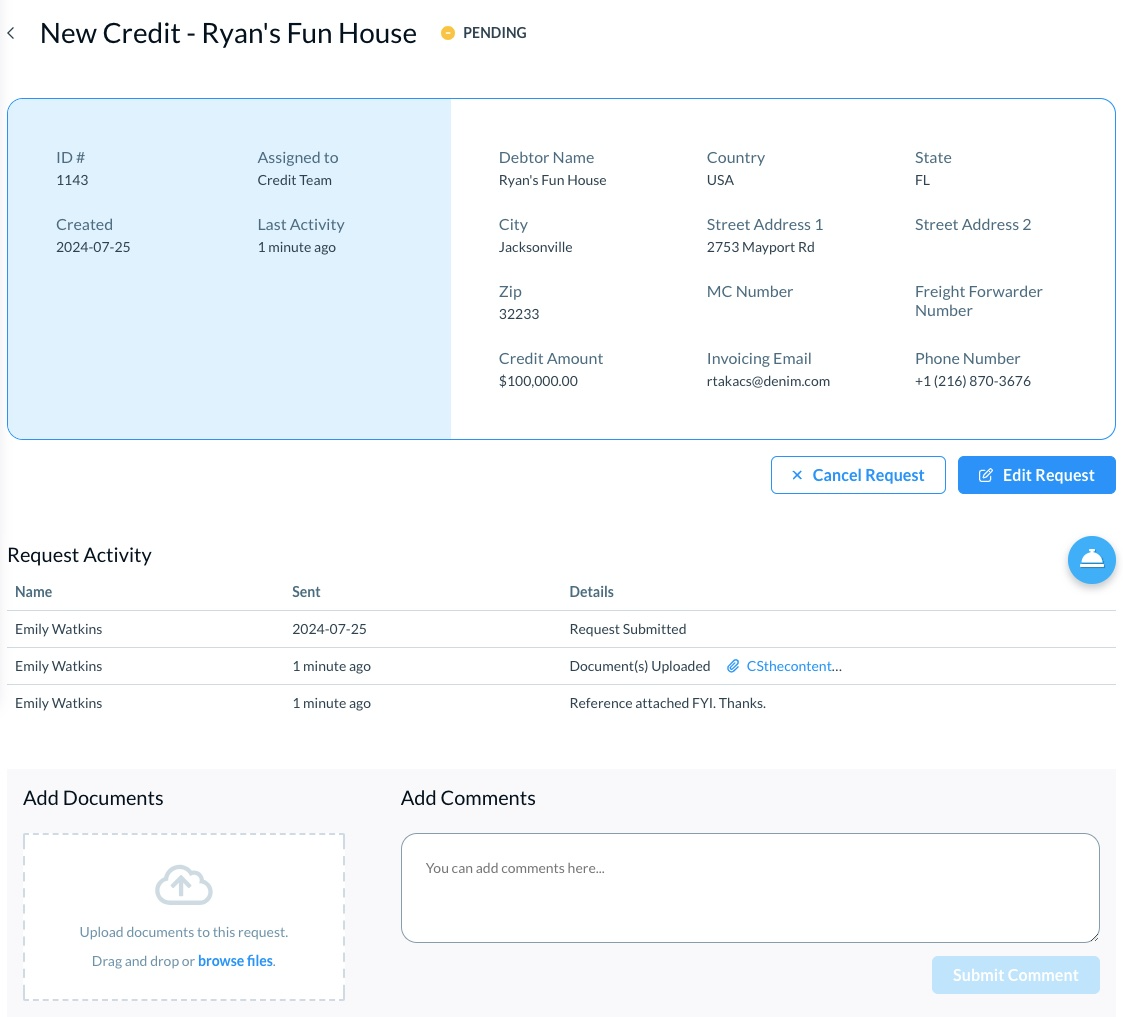
For a request, you can add comments, upload documents, see the activity log of the request, and edit or cancel this request. (Please see Manage and track request details for more information.)
If Support confirms that submitted paperwork has been added to a Collections Document request, monitor that specific request for further information or action. For this collections workflow, the collections team communicates through the request item rather than the support email inbox. Adding paperwork does not by itself confirm acceptance or resolve the collection matter.
If Support asks you to provide evidence of a broker's written confirmation about requested documents or payment for a collections request, take a screenshot of that confirmation and upload it to the specific Collections Document request item for team review. A broker email saying that paperwork was received or that payment is expected does not by itself confirm that the internal request was reviewed, a chargeback was removed, or payment was received. Do not assume those outcomes without case-specific confirmation.